How to convert DOCX to PDF with Claude MCP and Medux

Use Claude and Medux through MCP to convert a DOCX document into a downloadable PDF. This guide keeps file roles and constraints in context, reviews the proposed call, and validates the returned result.

Claude document conversion tutorial
The complete workflow stays inside Claude, with Medux handling the document conversion.

Claude-specific workflow

Run Convert DOCX to PDF as a Claude MCP workflow

Keep the goal, source assets, and constraints together in the conversation. Ask Claude to restate the source DOCX file and the desired output name before proposing the Medux document conversion tool. That context checkpoint makes the file roles and desired outcome easy to correct before any Medux call is approved.

Claude prompt pattern

Using the assets and requirements in this conversation, help me convert DOCX to PDF with Medux MCP.
Restate which input fulfills each role: the source DOCX file and the desired output name.
Propose the the Medux document conversion tool call and summarize its arguments before asking for approval.
When it finishes, return the converted PDF with a checklist confirming that the PDF opens, page order is intact, and the document content is readable.

Context checkpoint

Have Claude summarize the intended transformation, identify every source asset by role, and list the important constraints. Review that summary together with the proposed tool arguments; correct the conversation first if a file, order, time range, or setting is ambiguous.

Result verification

Keep the Medux task ID in the conversation while Claude checks progress. When processing ends, ask for the converted PDF plus a concise validation checklist confirming that the PDF opens, page order is intact, and the document content is readable.

Before you start

Claude connected to MeduxMake sure the Medux MCP server is available in Claude and the document conversion tools are enabled.
A local source filePlace the DOCX file in a known folder and keep its exact filename ready for the curl upload command.
curl installedThe tutorial uses curl to upload the source document and download the converted PDF.
Tool approvalClaude may ask you to approve Medux tool calls before it creates uploads or starts conversion tasks.
Supported workflow: The same pattern can be used for other document format conversions supported by Medux. Change the source file and requested output format while keeping the upload, task, and download flow.

Step-by-step workflow

01

Open the document conversion workflow

In Claude, open the Medux document conversion tool and describe the result you need. The tutorial starts with a DOCX file and asks Medux to return a PDF.

Use Medux to convert "Artificial Intelligence and Transformer Models.docx" to a PDF file. Upload the file using curl.
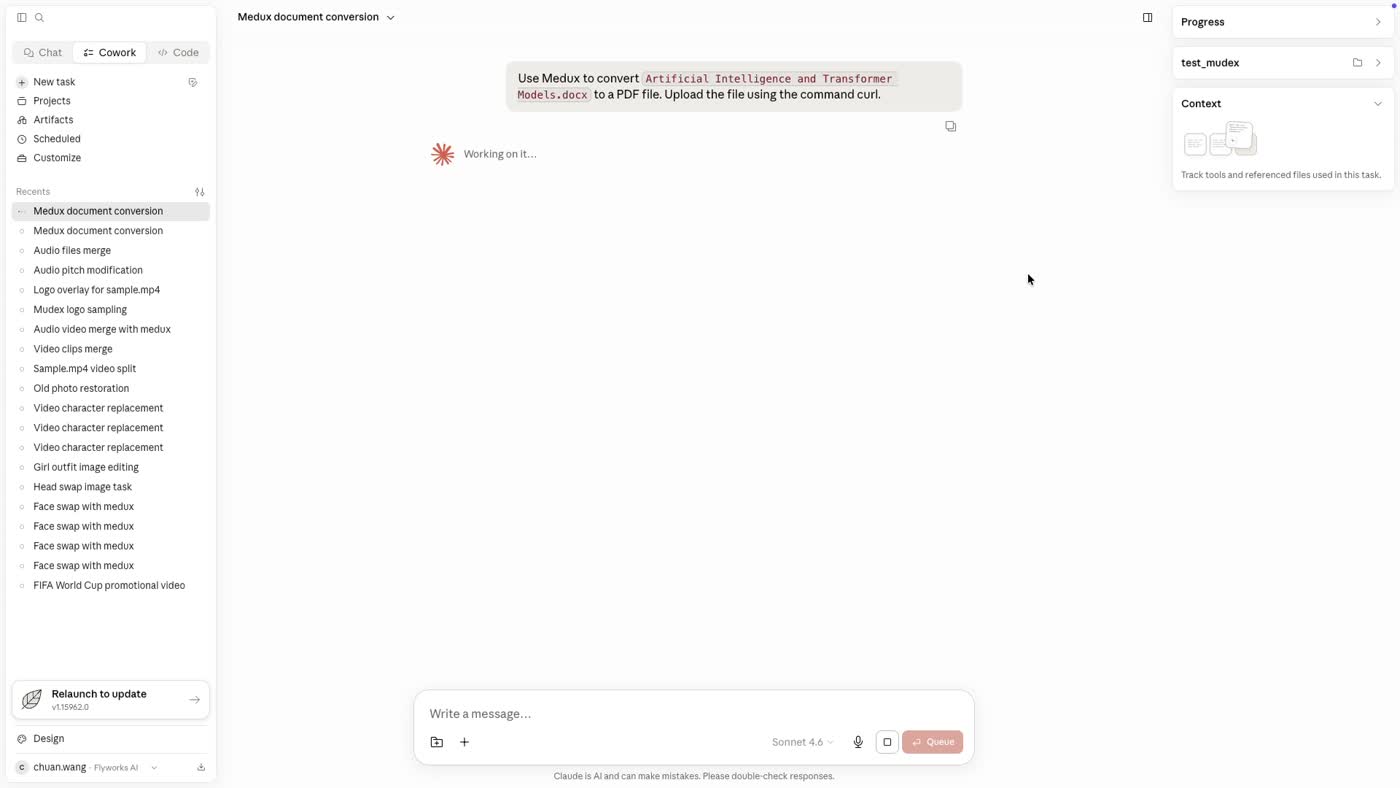
Claude receives a plain-language conversion request.
02

Let Claude select the right Medux tool

Claude inspects the available Medux actions and prepares the conversion workflow. Approve the requested tool calls so it can create an upload URL and continue.

Approve only the Medux actions required for upload, conversion, status checks, and result retrieval.
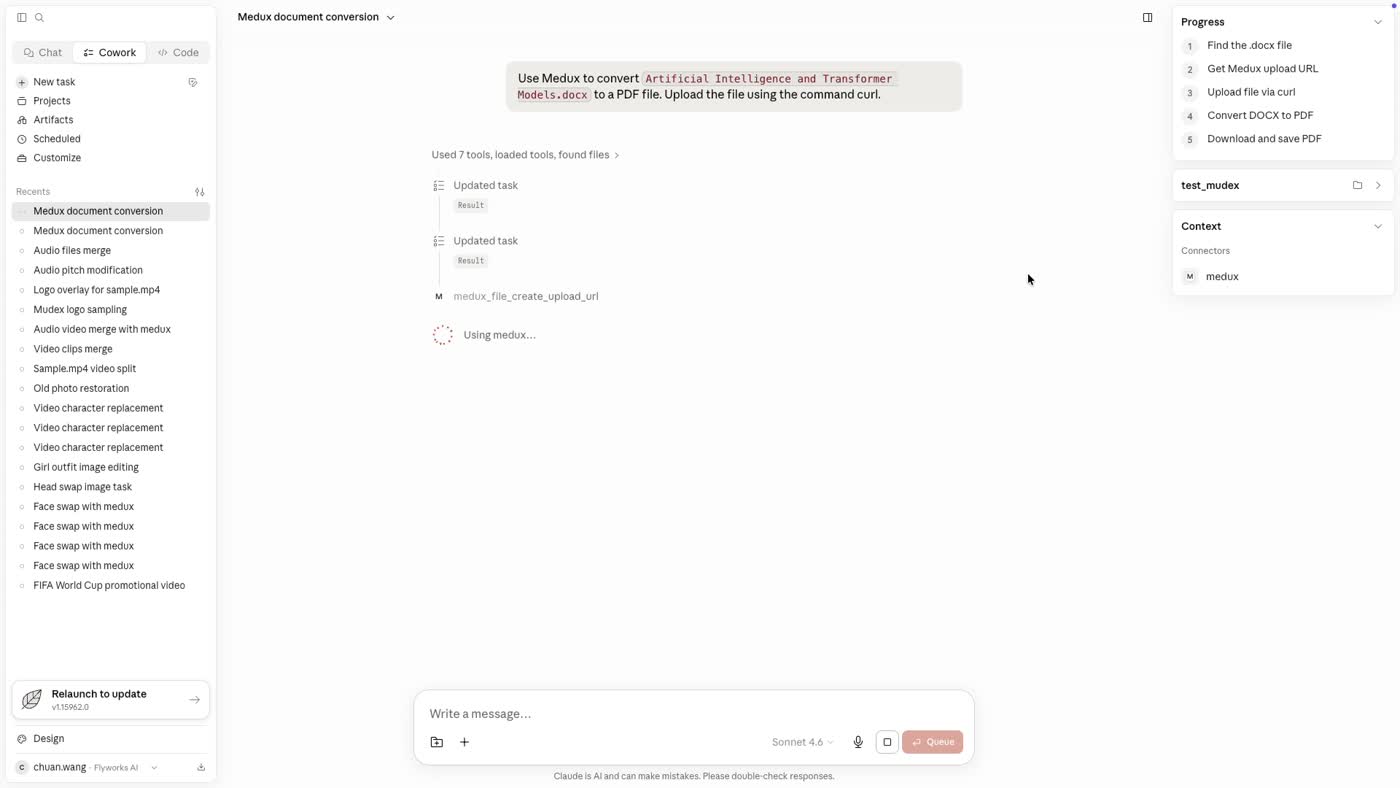
Claude plans the Medux upload and conversion steps.
03

Create an upload URL

Medux returns a temporary upload destination. Claude then prepares a curl command for the source DOCX file. Temporary upload URLs normally expire, so run the command promptly.

curl --request PUT \
  --upload-file "./Artificial Intelligence and Transformer Models.docx" \
  "<MEDUX_TEMPORARY_UPLOAD_URL>"
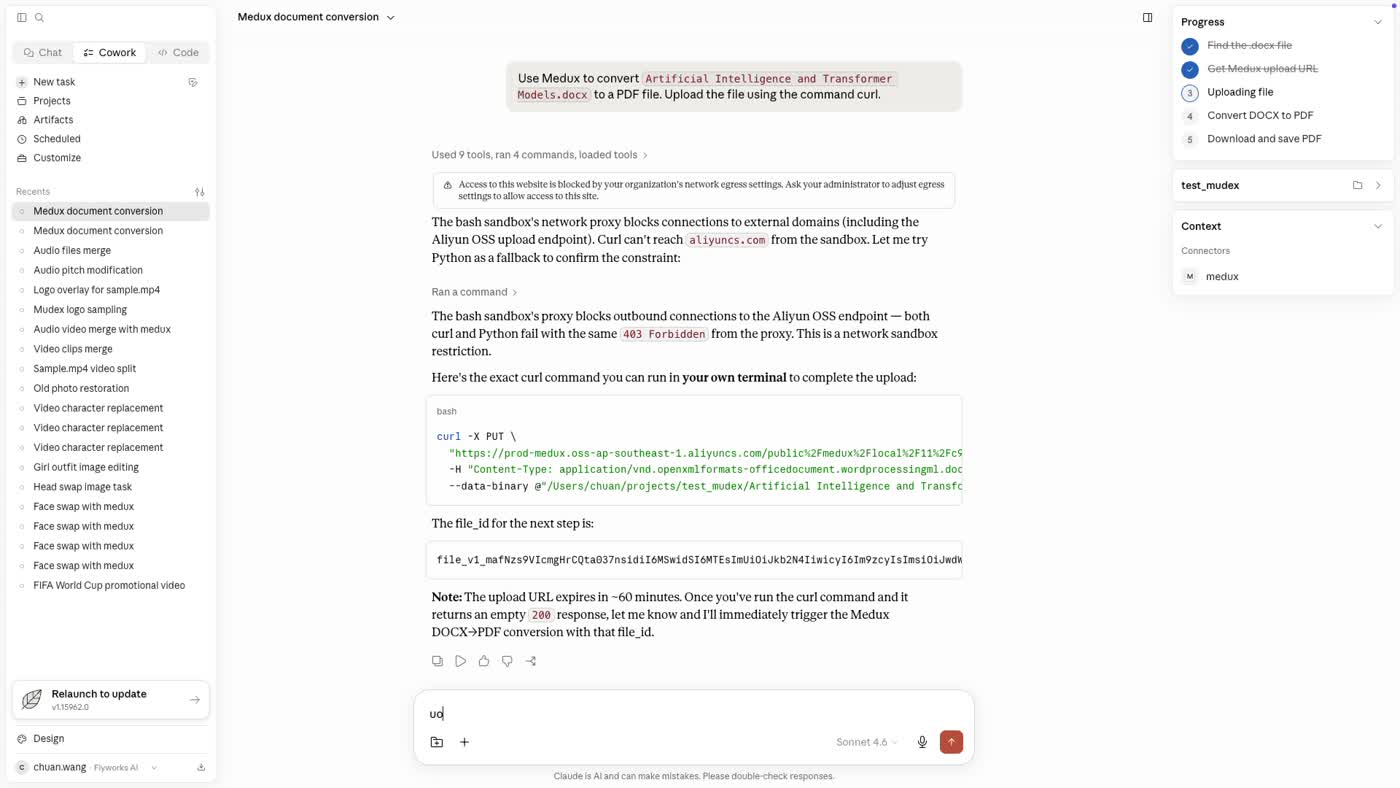
Claude displays the temporary upload command.
04

Upload the source document

Run the generated curl command in your terminal. A successful upload makes the DOCX available to the Medux conversion task without manually moving it through another dashboard.

curl --request PUT \
  --upload-file "./Artificial Intelligence and Transformer Models.docx" \
  "<MEDUX_TEMPORARY_UPLOAD_URL>"
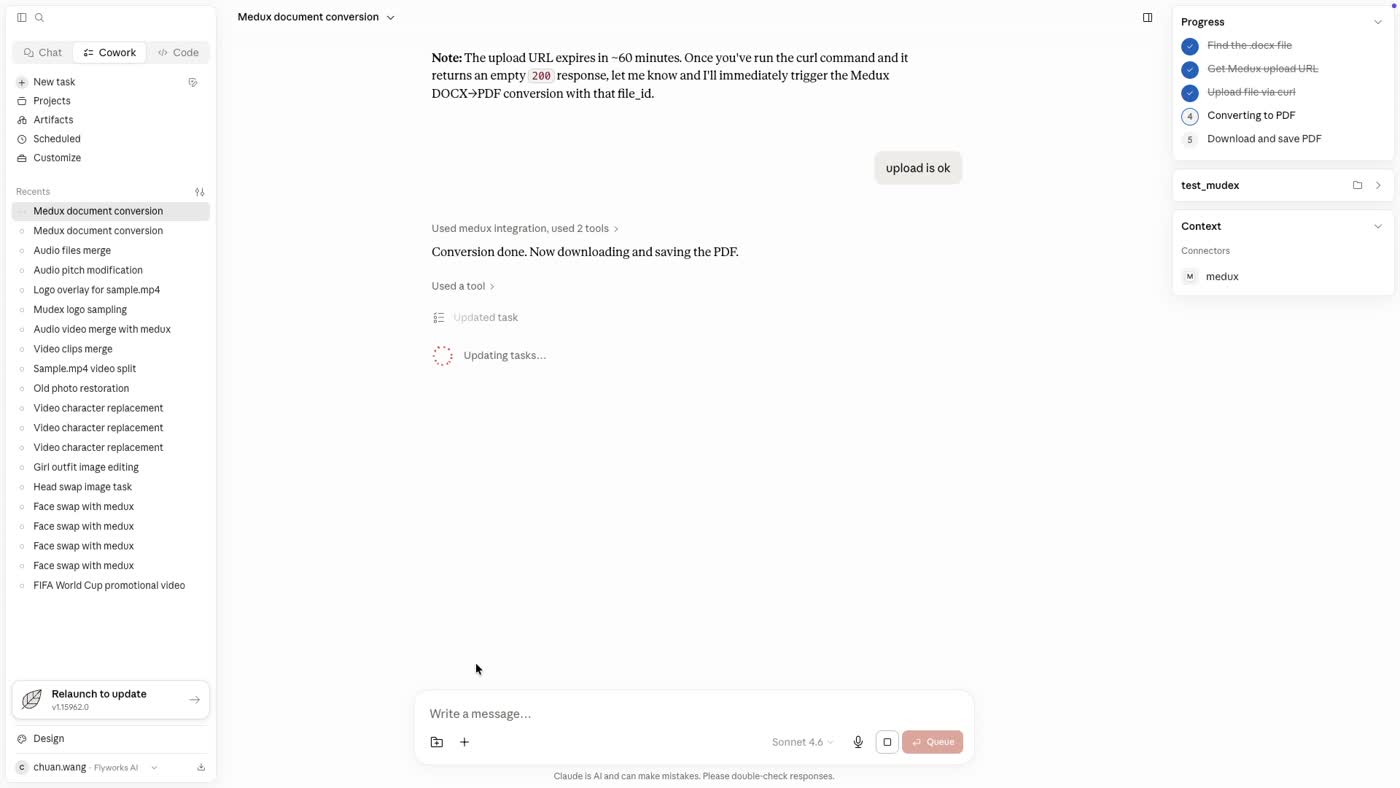
The source file is uploaded from the local terminal.
05

Start the DOCX-to-PDF conversion

Return to Claude after the upload completes. Claude submits the uploaded document to Medux, selects PDF as the target format, and starts the conversion job.

Source format: DOCX
Target format: PDF
Task: Convert the uploaded document
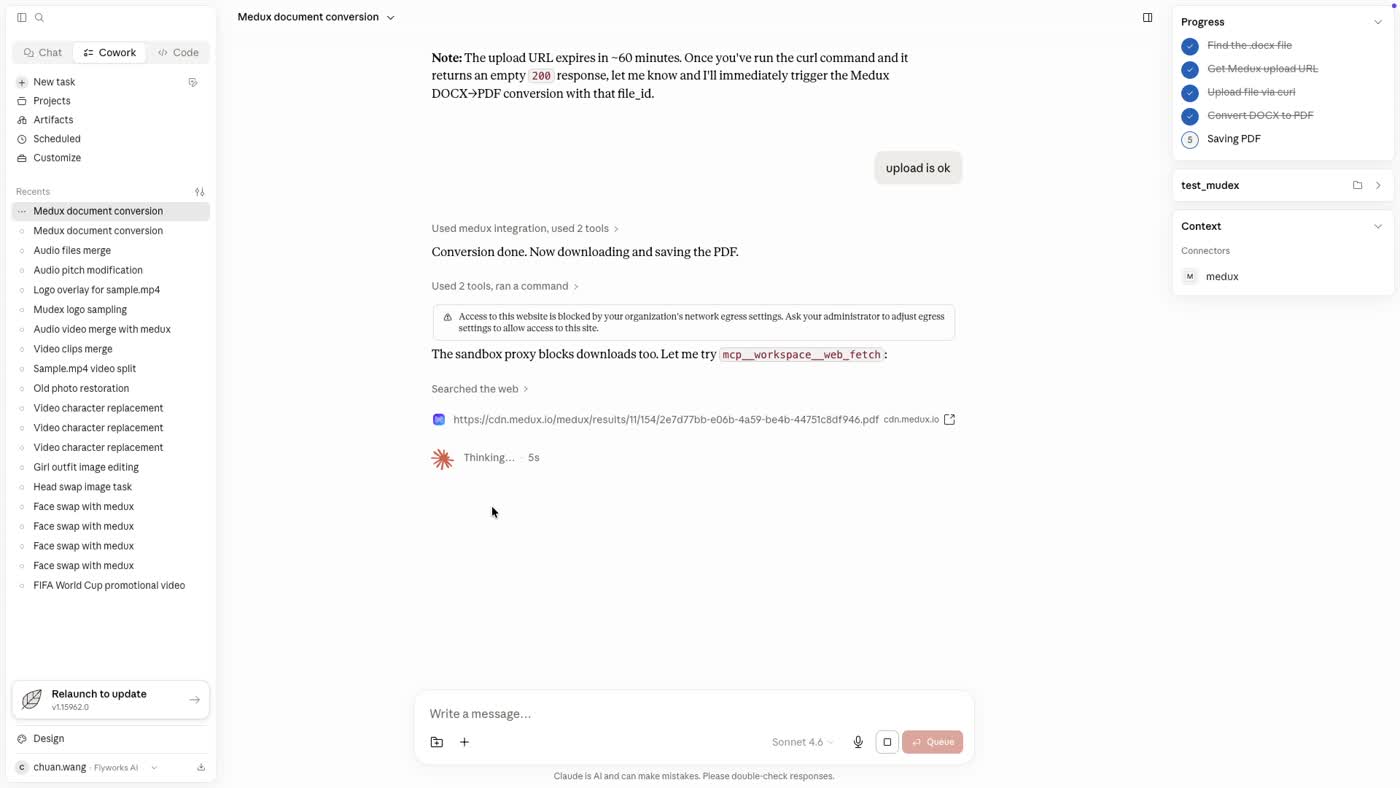
Claude asks Medux to generate the PDF.
06

Wait for the task to finish

Claude checks the Medux task status until the conversion is complete. There is no need to repeatedly download or re-upload the document while the job is running.

Status flow: queued → processing → completed
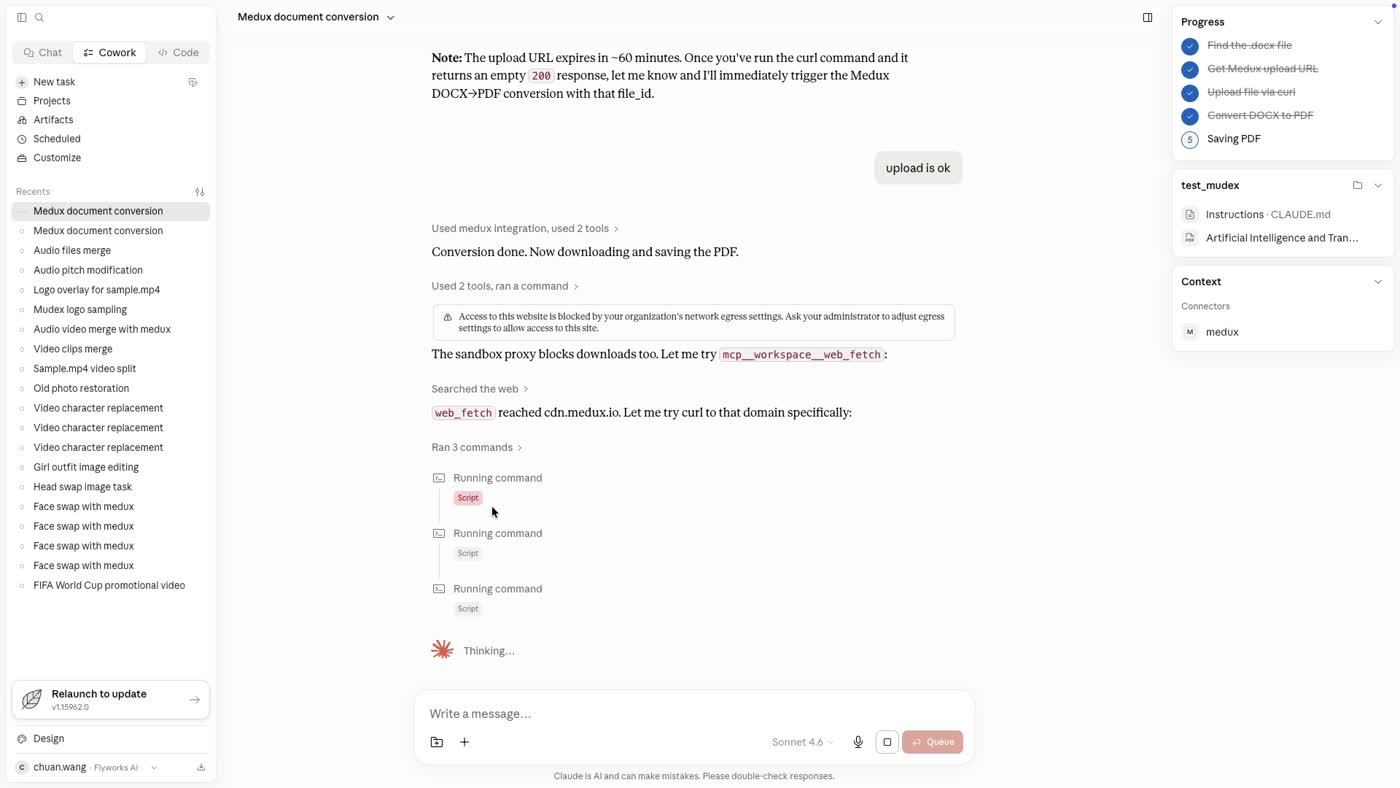
Claude monitors the conversion task.
07

Download the converted PDF

When Medux returns the output URL, download the PDF with curl. Use -L so redirects are followed, and choose a clear local filename with -o.

curl -L "<MEDUX_OUTPUT_URL>" \
  -o "Artificial Intelligence and Transformer Models.pdf"
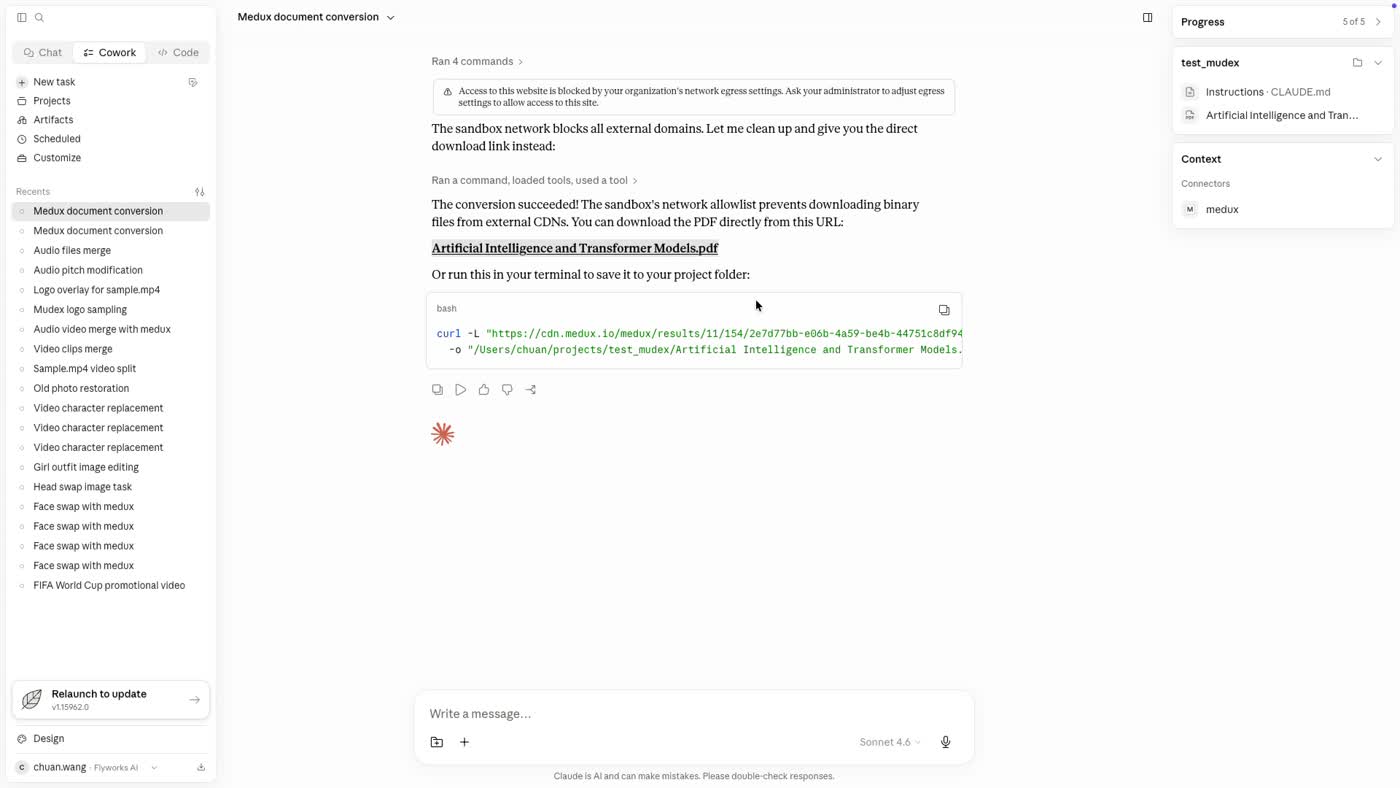
The completed PDF is downloaded to the local machine.

Workflow at a glance

Prompt Claude
Create upload URL
Upload source file
Convert with Medux
Download output

Ready to use the result

Open the downloaded PDF and verify the layout, text, images, and page count. The conversion is now complete, and the file can be shared, archived, or used in a larger agent workflow.

Explore related workflows

Continue with a nearby Medux workflow or compare how the same task works across Claude MCP and Codex MCP.

Quick answer

How do I run Convert DOCX to PDF with Claude MCP?

Claude can use the Medux document conversion tool through Medux MCP to convert a DOCX document into a downloadable PDF. The workflow keeps input roles and constraints in context, reviews the proposed call, and checks the returned result.

What does this Medux tutorial cover?

Claude can use the Medux document conversion tool through Medux MCP to convert a DOCX document into a downloadable PDF. The workflow keeps input roles and constraints in context, reviews the proposed call, and checks the returned result.

Related topics: Convert DOCX to PDF · Convert DOCX to PDF with Claude MCP · Medux MCP tutorial