

How to merge and split PDF files with Claude MCP and Medux

Use Claude and Medux through MCP to merge source PDFs, then extract the required pages into a final document. This guide keeps file roles and constraints in context, reviews the proposed call, and validates the returned result.

Start with one plain-English instruction in Claude.

Claude-specific workflow

Run Merge and Split PDF Files as a Claude MCP workflow

Keep the goal, source assets, and constraints together in the conversation. Ask Claude to restate the source PDF files, merge order, and exact pages to extract before proposing the Medux PDF merge and split tools. That context checkpoint makes the file roles and desired outcome easy to correct before any Medux call is approved.

Claude prompt pattern

Using the assets and requirements in this conversation, help me merge and split PDF files with Medux MCP.
Restate which input fulfills each role: the source PDF files, merge order, and exact pages to extract.
Propose the the Medux PDF merge and split tools call and summarize its arguments before asking for approval.
When it finishes, return the final edited PDF with a checklist confirming that the final PDF opens and contains the intended pages in the correct order.

Context checkpoint

Have Claude summarize the intended transformation, identify every source asset by role, and list the important constraints. Review that summary together with the proposed tool arguments; correct the conversation first if a file, order, time range, or setting is ambiguous.

Result verification

Keep the Medux task ID in the conversation while Claude checks progress. When processing ends, ask for the final edited PDF plus a concise validation checklist confirming that the final PDF opens and contains the intended pages in the correct order.

Before you start

You need Claude with the Medux MCP connector enabled, plus the PDF files available in your local project folder.

Input filesFor example, a.pdf and b.pdf.
Output goalOne merged PDF, or a selected page range exported as a new PDF.
Why this workflow is useful: Claude coordinates the steps, while Medux performs the document processing. You avoid writing a separate API client or switching between multiple dashboards.

The workflow

Describe the PDF task
Create upload URLs
Upload local PDFs
Run the Medux tool
Download the result

Step-by-step guide

01

Give Claude a clear instruction

Keep the request direct. Name the files, state the operation, and mention that Medux should be called through MCP.

Use Medux to merge a.pdf and b.pdf into one PDF.
Upload the files with curl, run the merge task,
and save the final result in the current project folder.
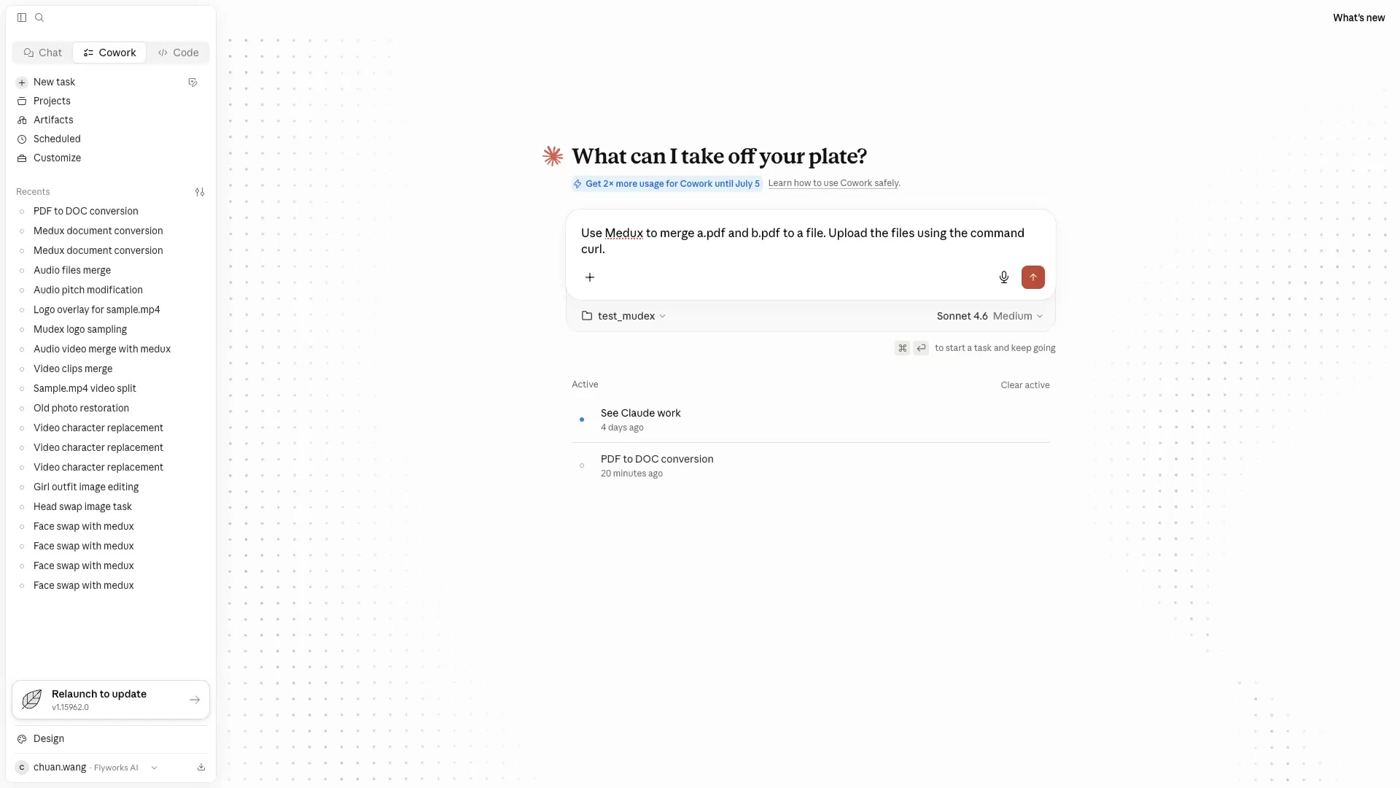
Start with one plain-English instruction in Claude.
02

Let Claude request upload URLs from Medux

Claude checks the available Medux tools and calls the file-upload helper for each PDF. Medux returns a temporary upload URL and a file ID.

medux_file_create_upload_url
{
  "extension": "pdf",
  "media_type": "DOCUMENT"
}
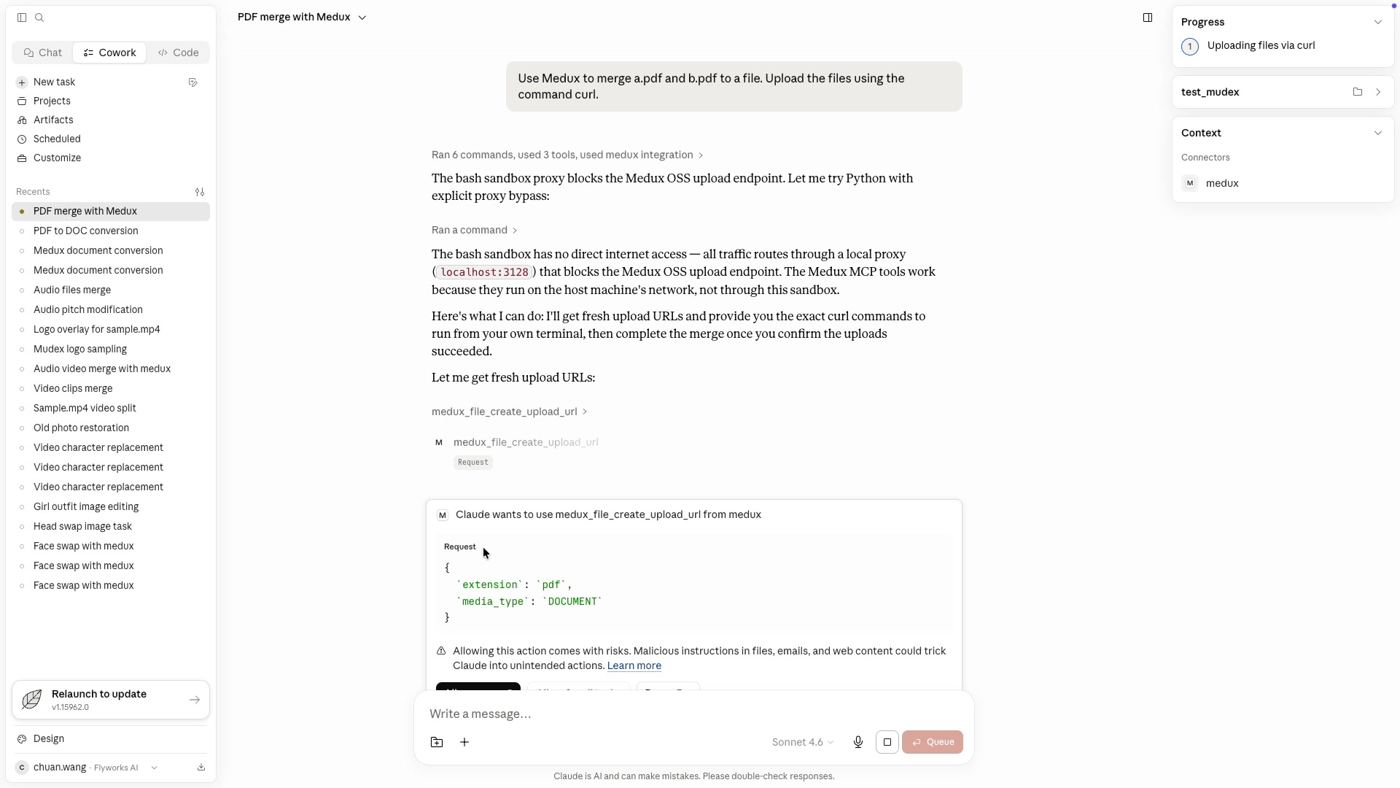
Claude requests upload URLs from the Medux MCP integration.
03

Upload the PDF files with curl

Run the generated commands in your own terminal. Long signed URLs are intentionally allowed to wrap inside this page, so the command block never extends beyond the content width.

curl -X PUT   -H "Content-Type: application/pdf"   --data-binary @"/path/to/a.pdf"   "PASTE_THE_UPLOAD_URL_FOR_A_HERE"

curl -X PUT   -H "Content-Type: application/pdf"   --data-binary @"/path/to/b.pdf"   "PASTE_THE_UPLOAD_URL_FOR_B_HERE"

A successful upload normally returns HTTP 200. After both files are uploaded, tell Claude to continue.
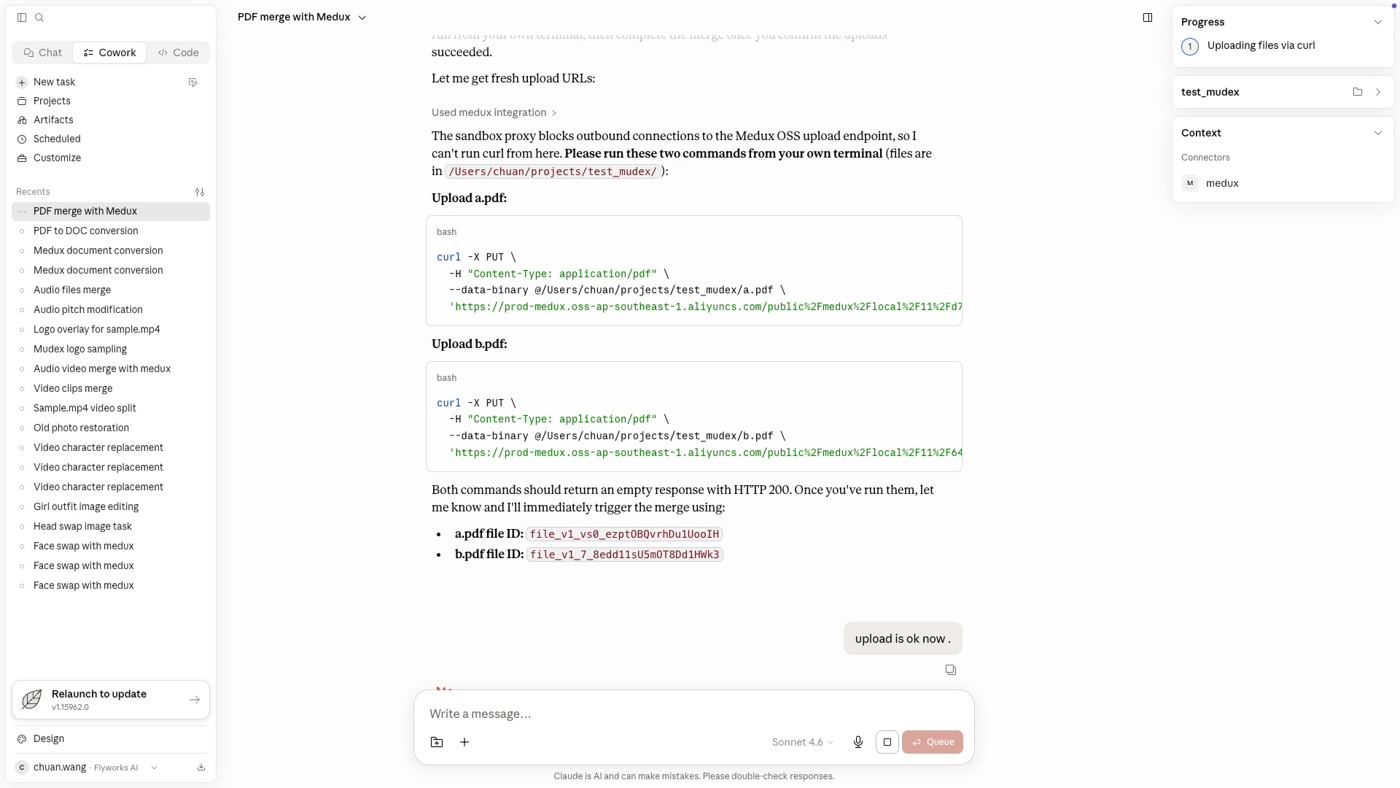
Upload both PDFs with the generated curl commands.
04

Run the Medux PDF operation

Claude passes the uploaded file IDs to the appropriate Medux PDF tool. For a merge task, preserve the file order you want in the final document.

Merge these uploaded PDF files in this order:
1. a.pdf
2. b.pdf

Return one combined PDF and save it as merged.pdf.
For PDF splitting: use the same upload flow, then ask Claude to extract a page range. Example: Split pages 10 through 20 from report.pdf and return them as report-pages-10-20.pdf.
05

Download and verify the result

When Medux finishes, Claude retrieves the result URL and downloads the output into the working folder. Open the file and verify the page order, page count, and filename.

curl -L "RESULT_DOWNLOAD_URL"   -o "./merged.pdf"

open "./merged.pdf"
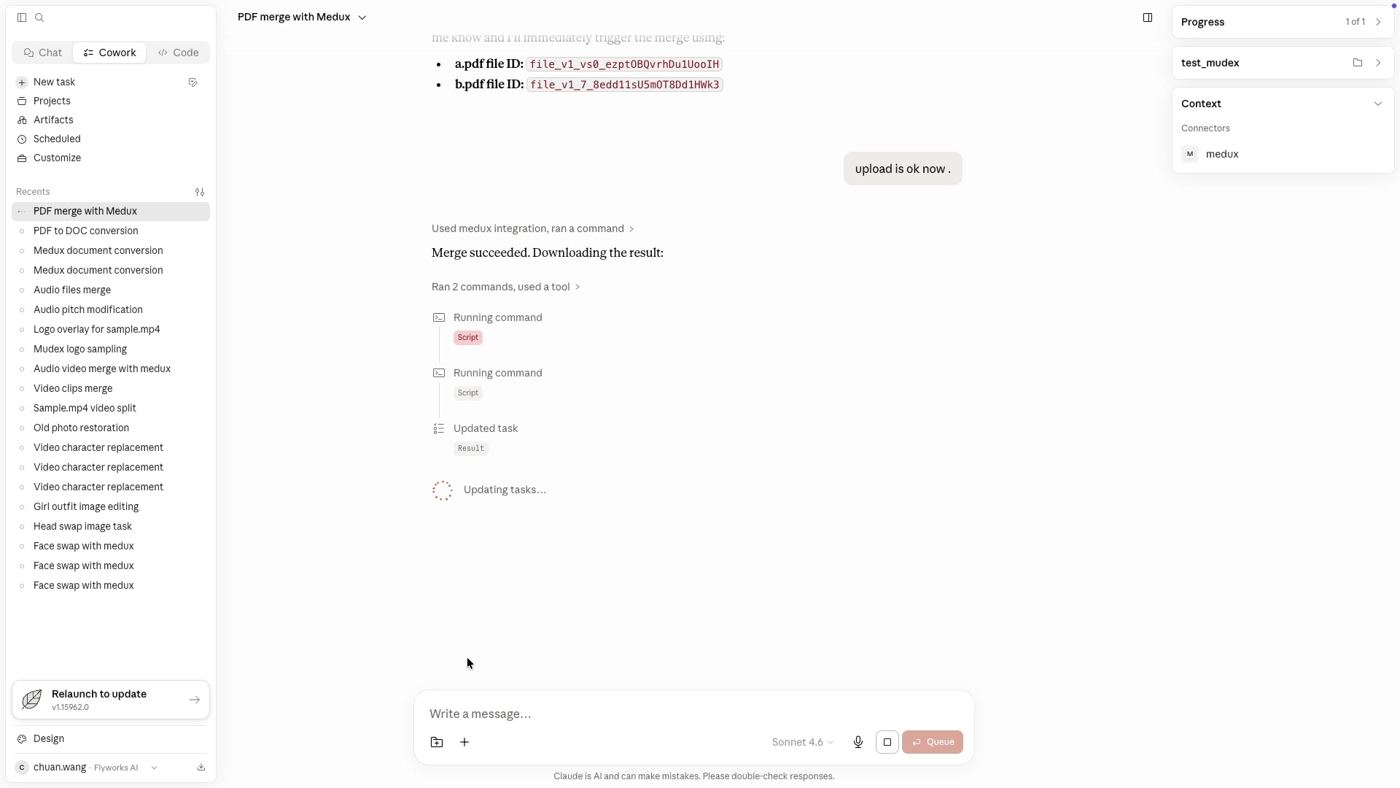
Claude starts the merge and downloads the result after the upload is confirmed.

Useful prompt variations

Merge several PDFs

Merge contract.pdf, appendix.pdf, and signature.pdf in that exact order.

Extract a page range

Split pages 5 to 12 from handbook.pdf and return a new PDF.

Keep selected pages

Create a new PDF containing pages 1, 3, 7, and 10 from source.pdf.

Reorder pages

Move page 8 to the beginning and save the reordered document as revised.pdf.

One instruction, one MCP connection, one finished PDF

Claude handles the workflow logic, Medux handles the PDF processing, and the final document returns to your local workspace. The same pattern can be reused for merging, splitting, page extraction, and other supported PDF editing tasks.

Explore related workflows

Continue with a nearby Medux workflow or compare how the same task works across Claude MCP and Codex MCP.

Quick answer

How do I run Merge and Split PDF Files with Claude MCP?

Claude can use the Medux PDF merge and split tools through Medux MCP to merge source PDFs, then extract the required pages into a final document. The workflow keeps input roles and constraints in context, reviews the proposed call, and checks the returned result.

What does this Medux tutorial cover?

Claude can use the Medux PDF merge and split tools through Medux MCP to merge source PDFs, then extract the required pages into a final document. The workflow keeps input roles and constraints in context, reviews the proposed call, and checks the returned result.

Related topics: Merge and Split PDF Files · Merge and Split PDF Files with Claude MCP · Medux MCP tutorial