01
Connect Medux MCP to Codex
Add the Medux remote MCP endpoint to Codex, provide an authorized credential, and confirm that the medux_add_audio_to_video tool is available.
Learn to add or replace audio in a video with the Medux API through Codex or Claude MCP. Check inputs, tool calls, task status, and output.
POST/api/app/v1/process/video/add_audio_to_video
Replace or add an audio track to a video.
Open the Add Audio to Video API reference →The Medux operation and request fields are shared. Switch tabs for the client-specific prompt, approval pattern, screenshots, and walkthrough.
Codex-specific workflow
Use the active workspace as the source of truth. Ask Codex to identify the source video, audio file, and timing requirements, select medux_add_audio_to_video, and keep the Medux task ID and returned output with the rest of the project. Naming the input roles and the expected result prevents an agent from guessing which file should be used where.
In this workspace, use medux_add_audio_to_video through Medux MCP to add or replace audio in a video.
First inspect and identify the source video, audio file, and timing requirements.
Show me the exact tool arguments before execution.
After the task completes, return the updated video and verify that the new audio is present at the intended time and the full video plays correctly.Before approving the call, compare the selected tool, file or asset IDs, ordering, timing, and output settings with the request. If a local filename was mapped to an uploaded Medux file ID, keep that mapping visible so it can be audited later.
Let Codex monitor an asynchronous task until it reaches a terminal state, then save or report the updated video. The final check is explicit: confirm that the new audio is present at the intended time and the full video plays correctly.
Replace or add an audio track to a video.
Codex selects medux_add_audio_to_video, presents the arguments for review, calls Medux, and reports the response.
Start with a clear instruction that names the Medux operation and the intended inputs.
Replace or add an audio track to a video.Confirm these values before approving the MCP tool call. The linked API page remains the source of truth for current limits and response semantics.
| Field | Type | Requirement | Purpose |
|---|---|---|---|
video_file_id | string | Required | Input video file id. |
audio_file_id | string | Required | Input audio file id. |
model_id | string | Optional | Model Default: add-audio-to-video-default. |
title | string | Optional | Optional task title. |
Add the Medux remote MCP endpoint to Codex, provide an authorized credential, and confirm that the medux_add_audio_to_video tool is available.
Prepare the source files, asset IDs, text, or settings required by the operation. Upload local media first when the tool requests file IDs.
Use one direct instruction with the intended values. Codex should select the Medux tool and show the proposed arguments before execution.
Check that the tool is medux_add_audio_to_video and that each file ID, task ID, option, and output setting matches your request before approving it.
If Medux returns an asynchronous task, let the agent monitor it until completion; otherwise review the immediate response and save any result identifiers or output URLs.
User goal
  ↓
Codex selects medux_add_audio_to_video
  ↓
Review inputs and approve the tool call
  ↓
Medux runs Add Audio to Video
  ↓
Codex reports the response and outputCodex can call the medux_add_audio_to_video Medux MCP tool to replace or add an audio track to a video. This guide covers the required inputs, approval flow, result handling, and the matching API reference.
This workflow uses medux_add_audio_to_video. Review its arguments before approval and consult the API reference for the current contract.
Claude-specific workflow
Keep the goal, source assets, and constraints together in the conversation. Ask Claude to restate the source video, audio track, and timing requirements before proposing medux_add_audio_to_video. That context checkpoint makes the file roles and desired outcome easy to correct before any Medux call is approved.
Using the assets and requirements in this conversation, help me add an audio track to a video with Medux MCP.
Restate which input fulfills each role: the source video, audio track, and timing requirements.
Propose the medux_add_audio_to_video call and summarize its arguments before asking for approval.
When it finishes, return the finished MP4 with a checklist confirming that the new audio starts at the intended time and the video duration is correct.Have Claude summarize the intended transformation, identify every source asset by role, and list the important constraints. Review that summary together with the proposed tool arguments; correct the conversation first if a file, order, time range, or setting is ambiguous.
Keep the Medux task ID in the conversation while Claude checks progress. When processing ends, ask for the finished MP4 plus a concise validation checklist confirming that the new audio starts at the intended time and the video duration is correct.
A video file without an audio track, such as sample-video-no-audio.mp4.
The audio you want to attach, such as sample-audio.m4a.
Tell Claude which audio file and silent video to use, and ask it to upload both files with curl before calling Medux.
Using Medux, add sample-audio.m4a to
sample-video-no-audio.mp4.
Upload both files with the curl command.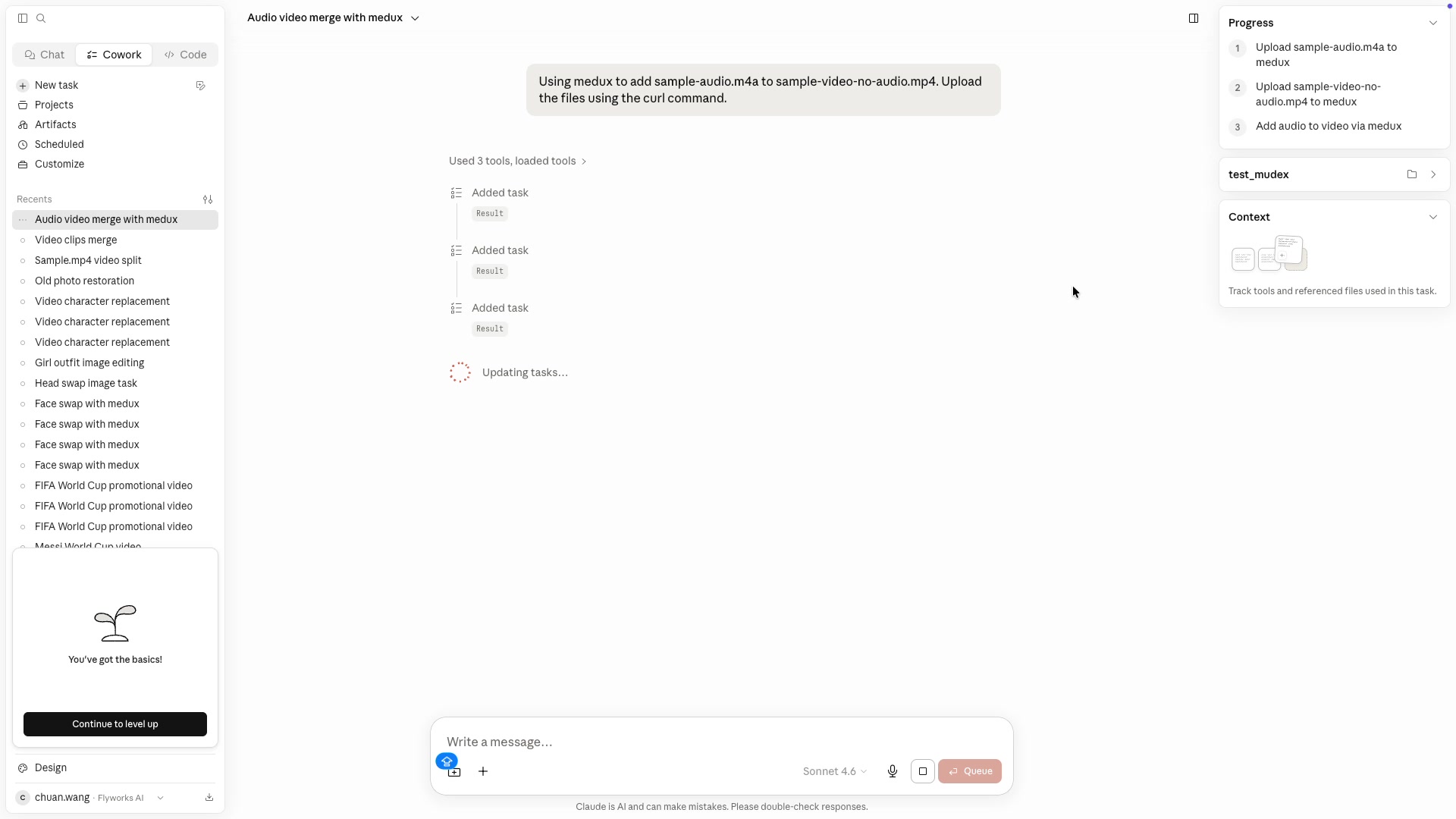
Claude uses the Medux integration to create upload slots for the audio and video. Each slot returns a file ID and a temporary signed upload URL.
Keep the returned file IDs. Medux uses them in the merge request.
Run the generated commands in your local terminal. Use the correct content type for each file. The long signed URL is represented below by a placeholder so the command stays readable.
curl -X PUT   -H "Content-Type: audio/mp4"   --data-binary @./sample-audio.m4a   "<SIGNED_AUDIO_UPLOAD_URL>"

curl -X PUT -H "Content-Type: video/mp4" --data-binary @./sample-video-no-audio.mp4 "<SIGNED_VIDEO_UPLOAD_URL>"200 with an empty response body.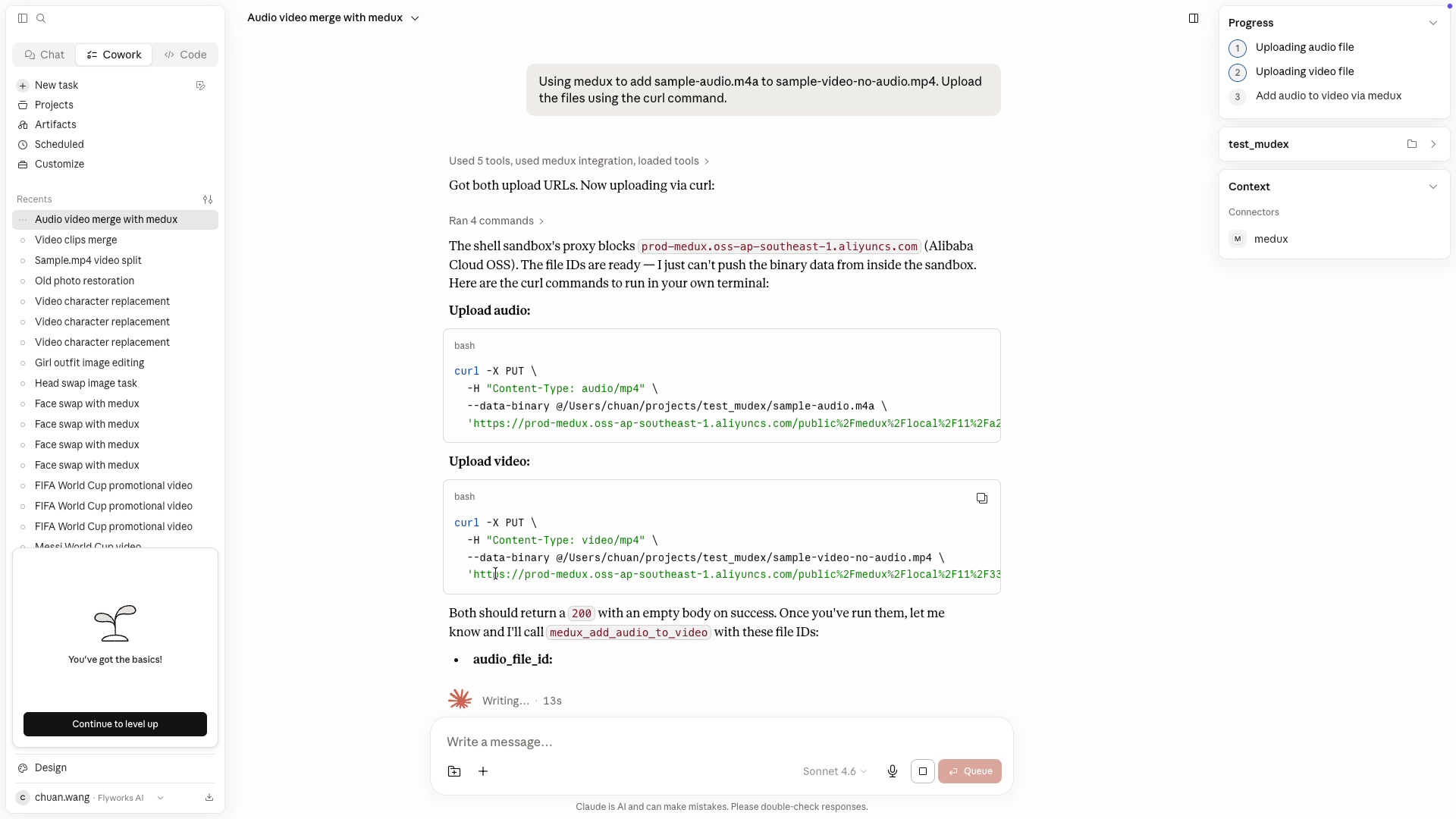
After both uploads succeed, Claude calls medux_add_audio_to_video with the audio file ID and video file ID. Medux creates a new processing task.
Tool: medux_add_audio_to_video
Inputs:
  audio_file_id: <AUDIO_FILE_ID>
  video_file_id: <VIDEO_FILE_ID>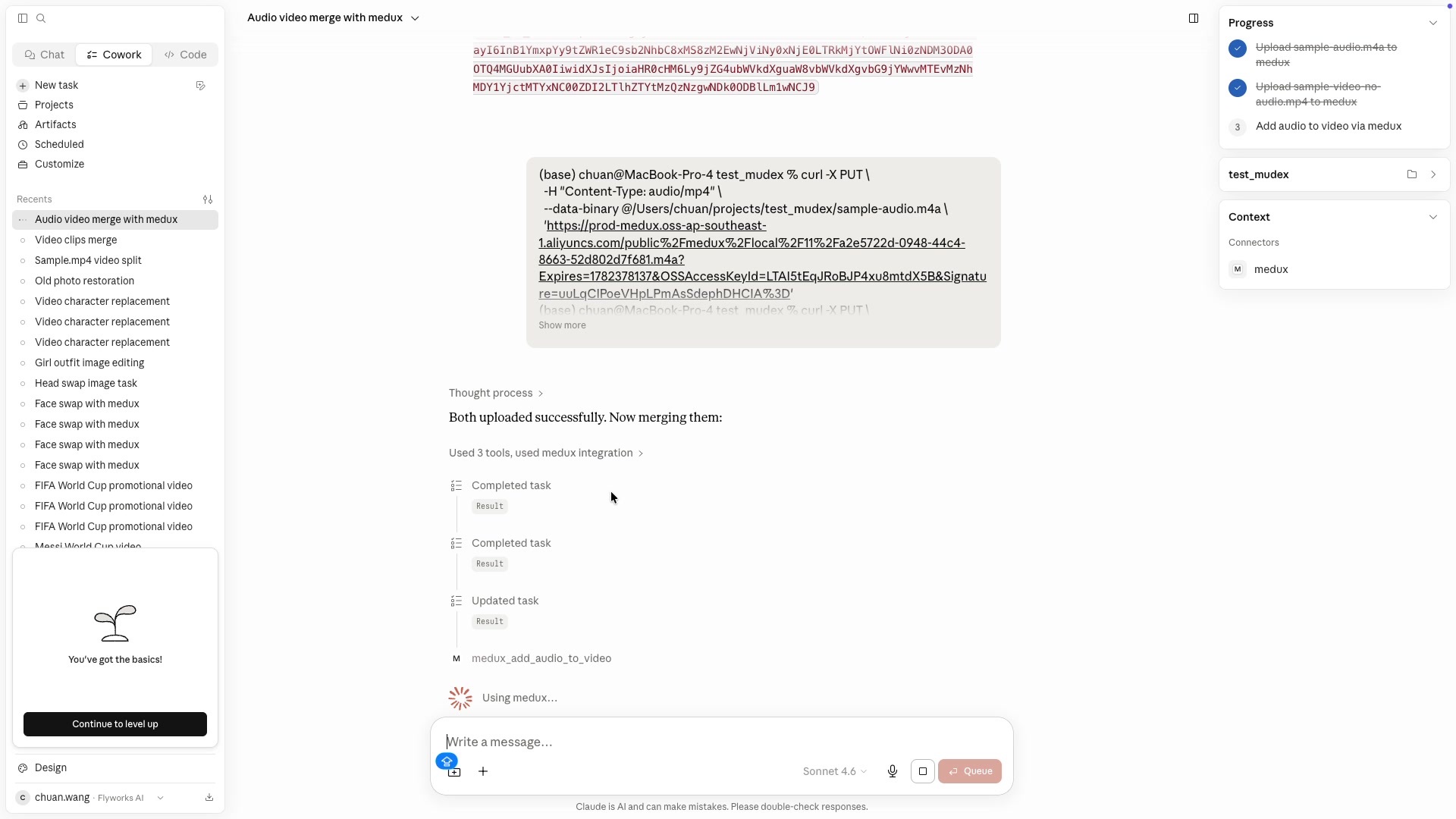
Claude checks the Medux task until it is complete. When the result URL is ready, it downloads the finished video into the project folder.
Tool: medux_task_query
Input:
  task_id: <TASK_ID>

curl -L "<RESULT_DOWNLOAD_URL>"   -o ./sample-video-with-audio.mp4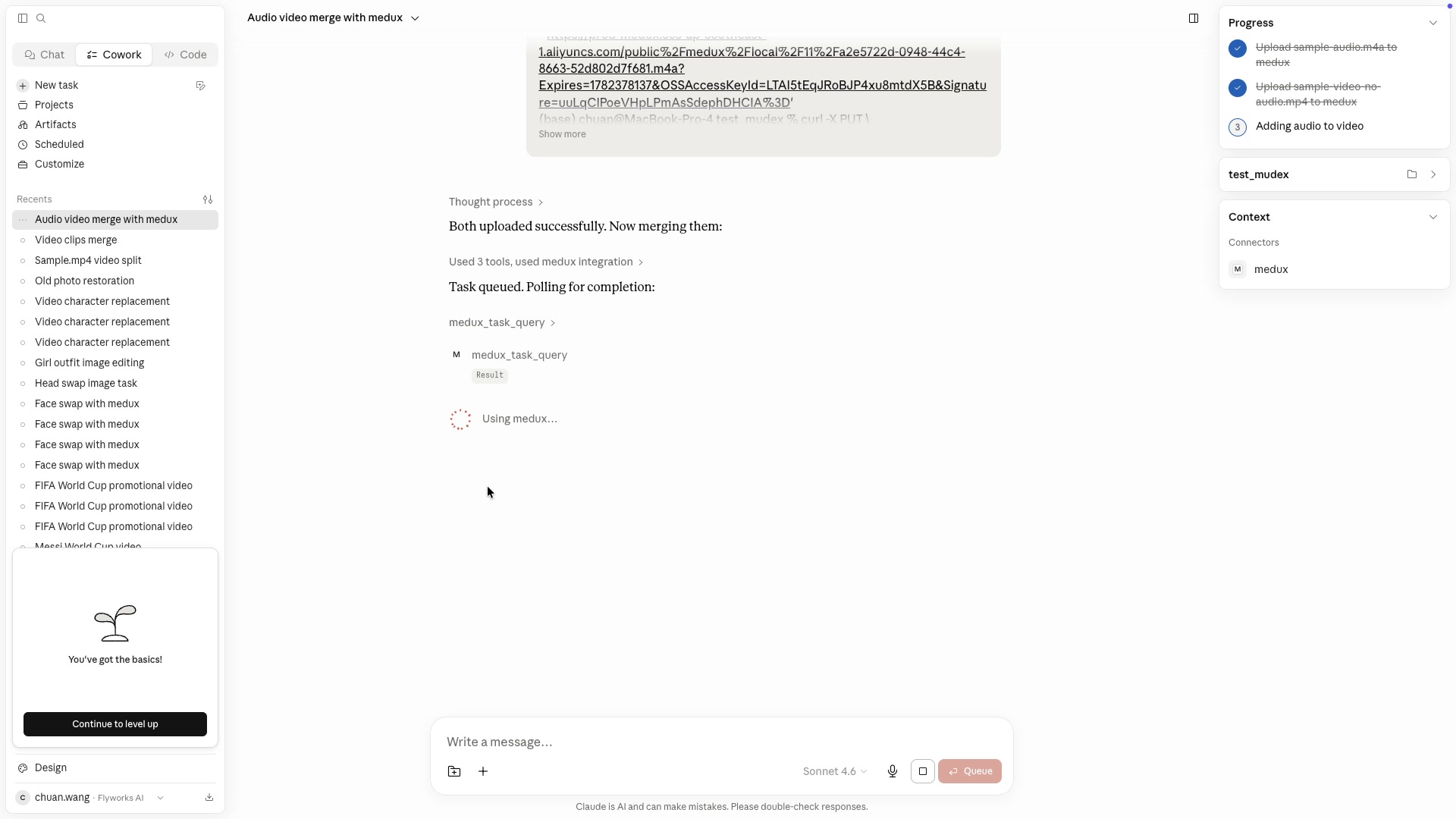
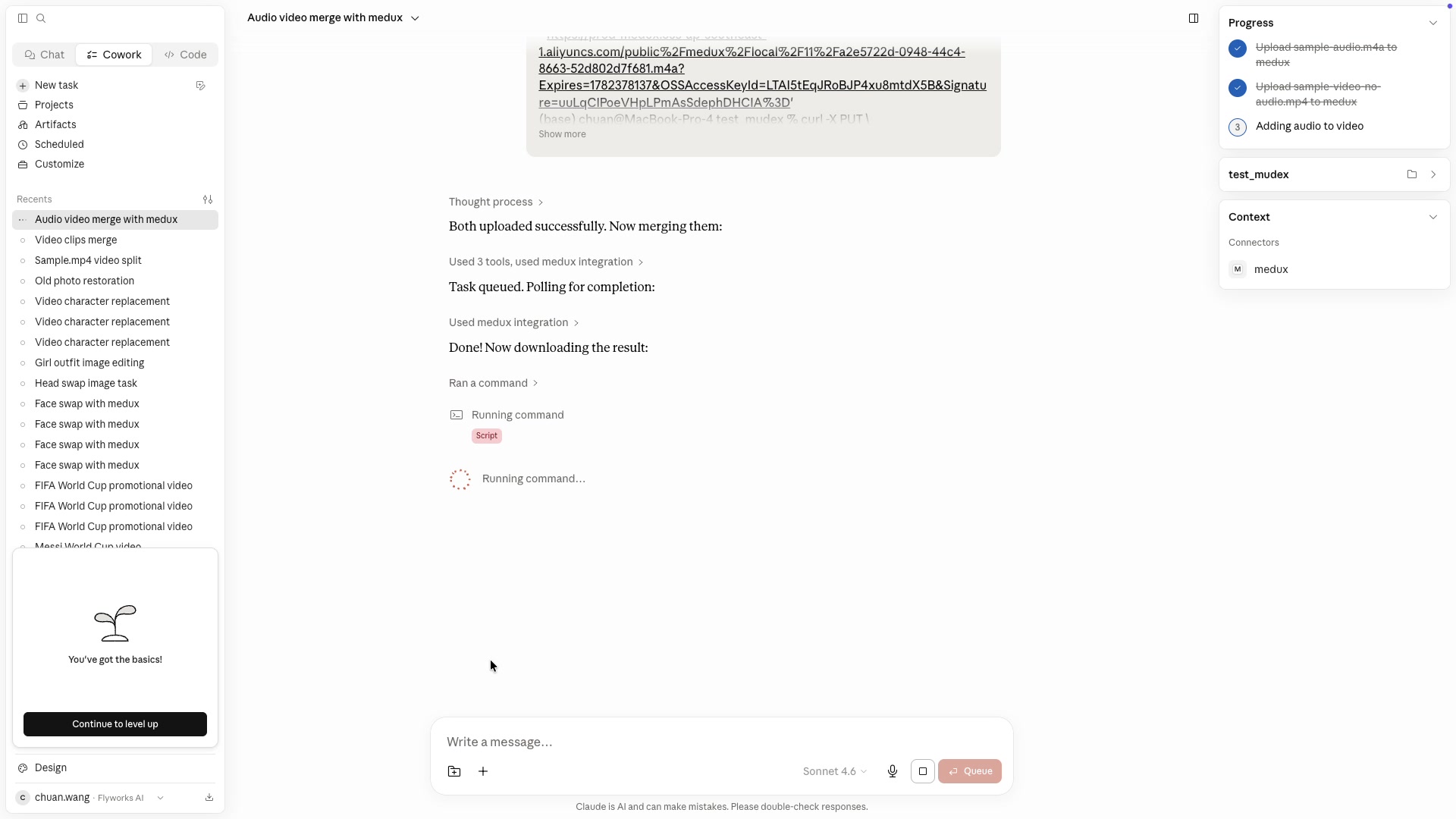
Claude handles the orchestration while Medux handles the media processing. You stay in one conversational workflow instead of building a custom upload interface, writing a separate API client, or switching between multiple dashboards.
Claude plans. MCP connects. Medux processes.
Continue with a nearby Medux workflow or compare how the same task works across Claude MCP and Codex MCP.