01
Open the project in Codex
Start inside the folder that contains your avatar video and audio file. In the operation video, Codex first checks the workspace so it knows exactly which files can be used for the Medux task.
Create an AI lip sync video through the Medux API with Codex or Claude MCP. Upload avatar video and driving audio, review the call, and verify mouth sync.
The Medux operation and request fields are shared. Switch tabs for the client-specific prompt, approval pattern, screenshots, and walkthrough.
Codex-specific workflow
Use the active workspace as the source of truth. Ask Codex to identify the source avatar video and driving audio, with each role clearly assigned, select the Medux lip-sync tool, and keep the Medux task ID and returned output with the rest of the project. Naming the input roles and the expected result prevents an agent from guessing which file should be used where.
In this workspace, use the Medux lip-sync tool through Medux MCP to create an AI lip sync video.
First inspect and identify the source avatar video and driving audio, with each role clearly assigned.
Show me the exact tool arguments before execution.
After the task completes, return the lip-synced MP4 and verify that mouth movement follows the driving speech and the full video and audio play correctly.Before approving the call, compare the selected tool, file or asset IDs, ordering, timing, and output settings with the request. If a local filename was mapped to an uploaded Medux file ID, keep that mapping visible so it can be audited later.
Let Codex monitor an asynchronous task until it reaches a terminal state, then save or report the lip-synced MP4. The final check is explicit: confirm that mouth movement follows the driving speech and the full video and audio play correctly.
Keep the setup small. The operation video uses a short avatar clip and a WAV audio file, then asks Codex to operate Medux through the MCP connection.
lip_synced_avatar.mp4 so it is easy to preview and reuse.# Example project layout
project/
avatar.mp4
reference_voice.wav
tts.txt
config/
output/The operation is straightforward: Codex reads your goal, checks the files, chooses the Medux tools, uploads media, creates the generation task, polls the task status, and saves the final video locally.
Start inside the folder that contains your avatar video and audio file. In the operation video, Codex first checks the workspace so it knows exactly which files can be used for the Medux task.
Make sure the Medux MCP server is enabled before asking Codex to run the workflow. Once MCP is connected, Codex can call Medux directly instead of making you switch dashboards or write a separate upload script.
# Example only: use the exact MCP config from your Medux account
export MEDUX_API_KEY="your_medux_api_key"

# Then start Codex in the folder that contains your media files
codexUse one direct instruction. The best prompt names the input files, explains the goal, and tells Codex what to return. This keeps the tool call clean and reduces back-and-forth.
Use Medux through MCP to create a lip-synced avatar video.

Inputs:
- avatar.mp4
- reference_voice.wav

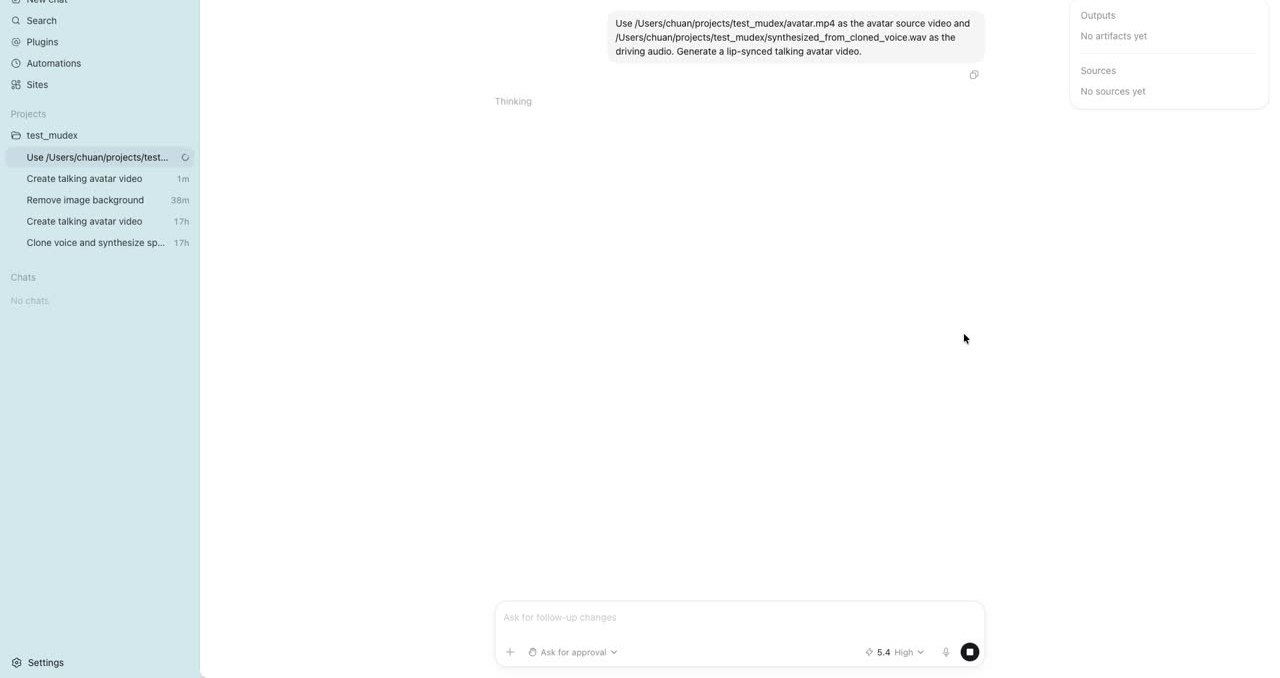
Please upload both files to Medux, create the required avatar source, generate a lip-and-tongue synced video from the audio, poll the task until it is complete, and download the final MP4 as output/lip_synced_avatar.mp4.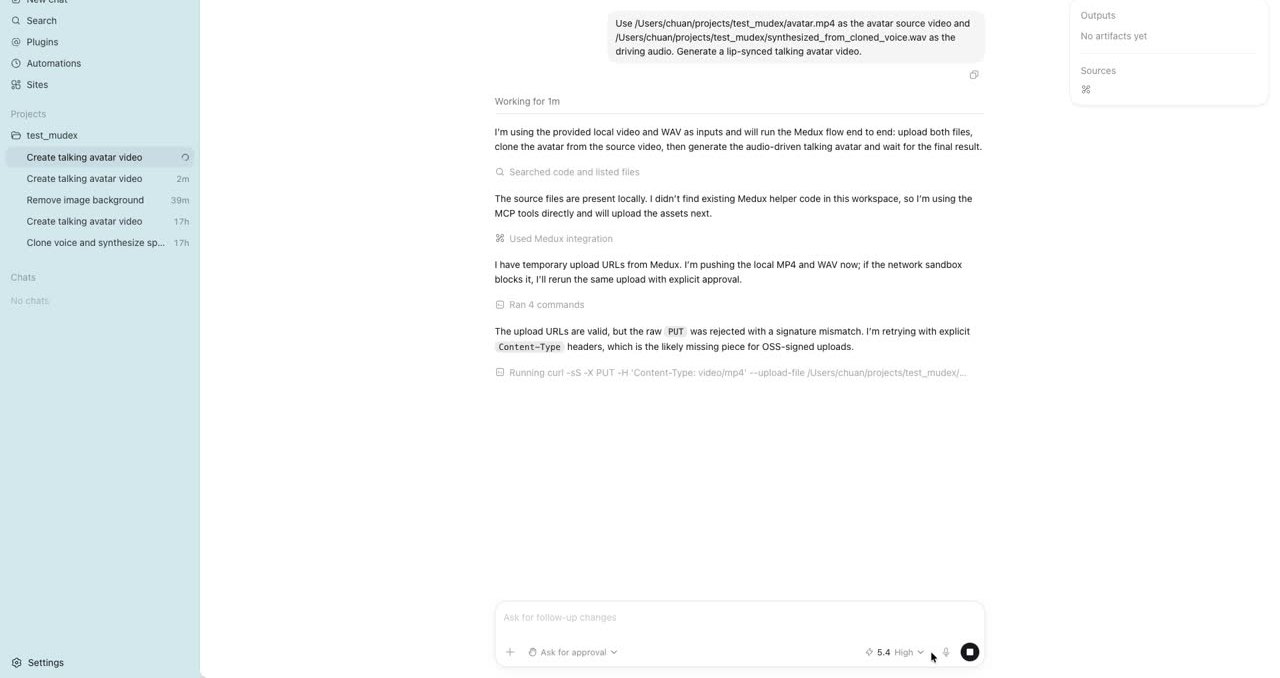
Codex uses the Medux MCP tools to create upload slots, send the video and audio, and prepare the avatar source. In practice, this is the part that replaces manual dashboard uploads.
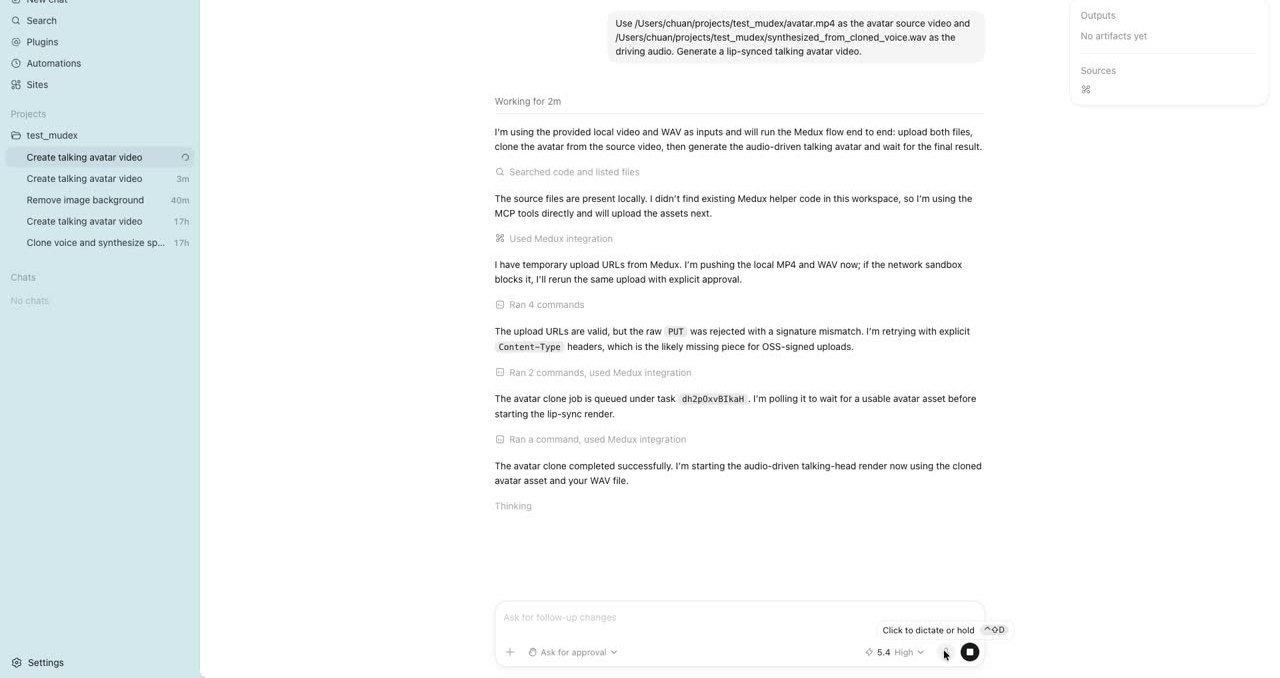
After the avatar source is ready, Codex launches the generation task. Medux uses the video as the visual identity and the audio as the timing reference, then renders a synced output.
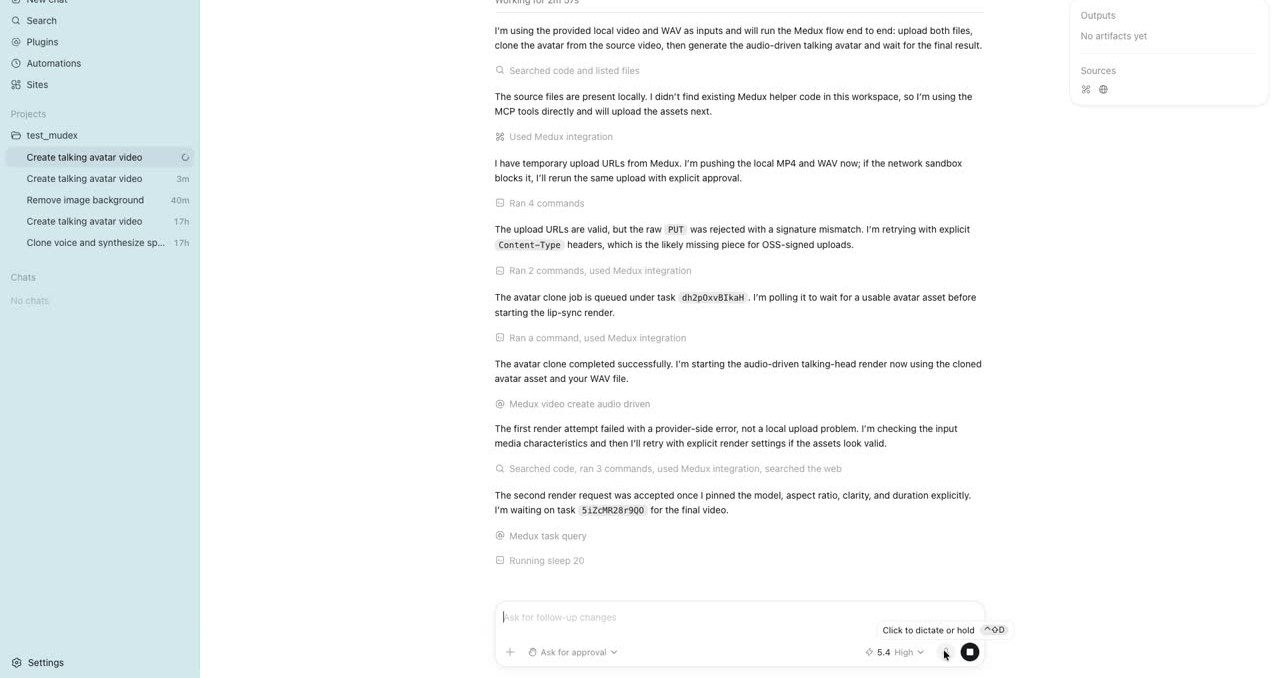
Do not refresh manually. Codex can keep checking the Medux task status and continue only when the render is finished. This is especially useful for longer videos or higher-quality outputs.
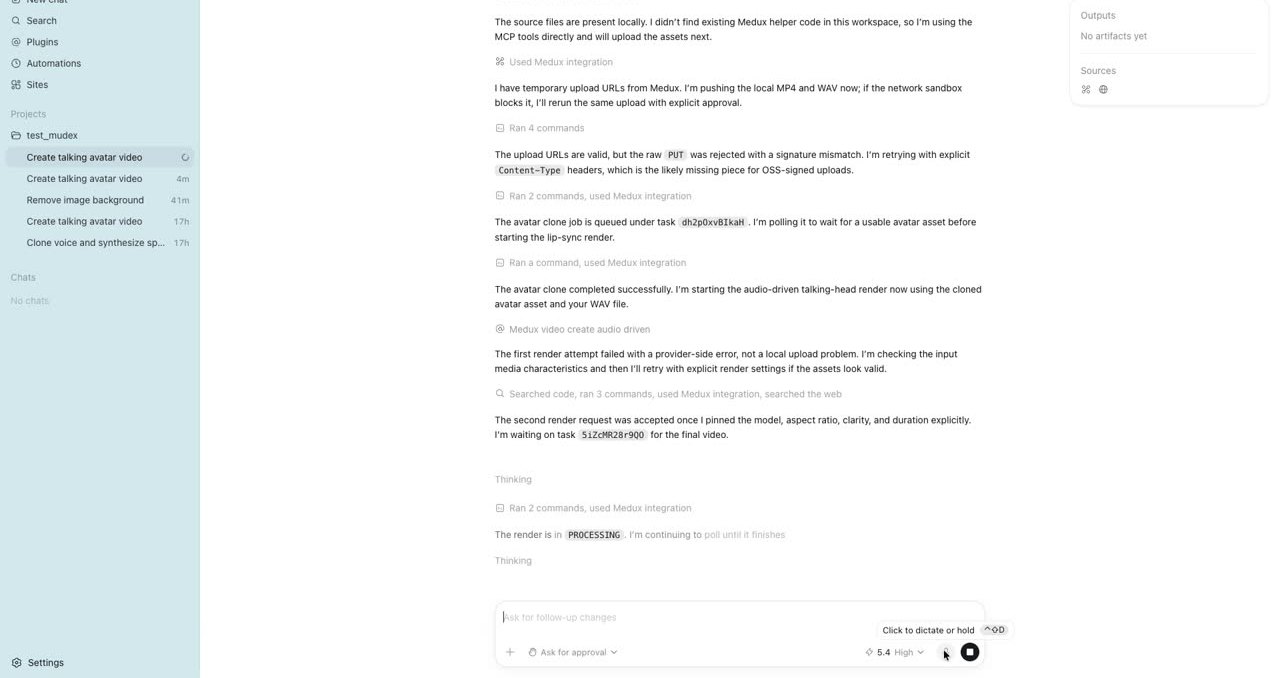
When the task is complete, Codex downloads the output and saves it locally. Open the result and check three things: the mouth follows the audio, the face remains stable, and the final video plays from start to finish.
# Quick local check
ffprobe output/lip_synced_avatar.mp4

# Preview the generated video
open output/lip_synced_avatar.mp4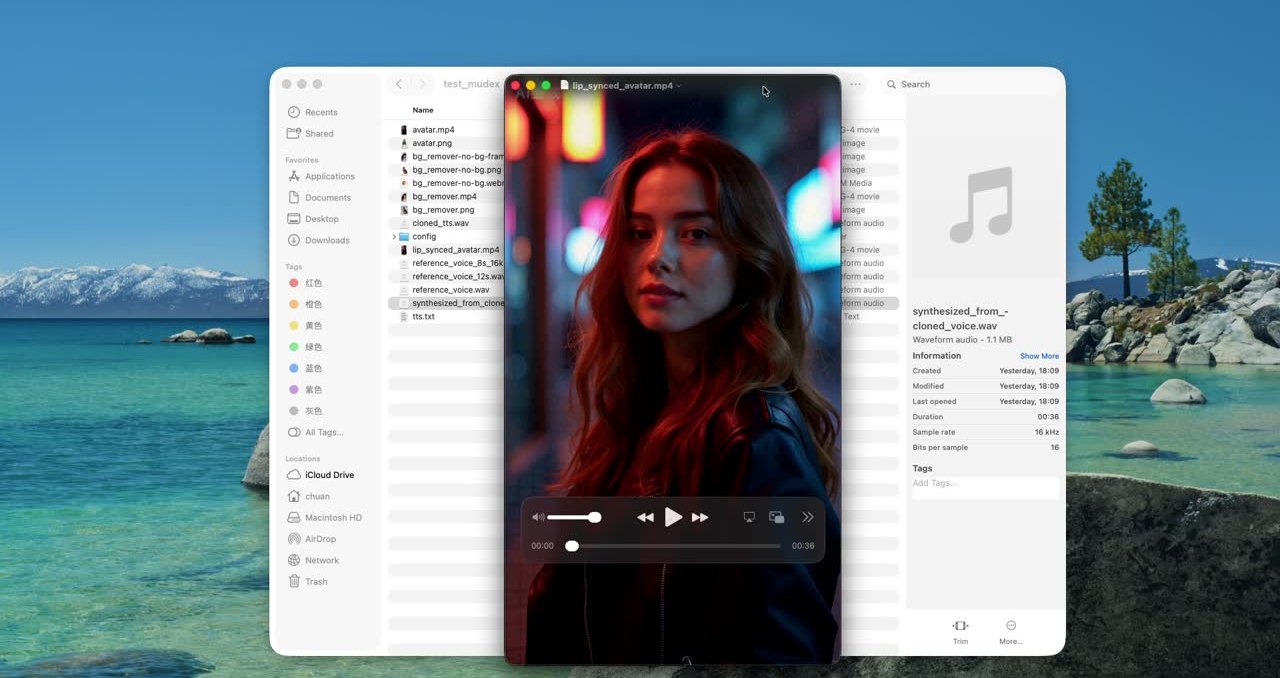
Use this checklist before publishing the result or adding it to a larger content workflow.
Medux gives Codex a media workflow layer through MCP. For lip and tongue sync, Codex only needs the source video, the speech audio, and a clear instruction. Medux handles the rendering, while Codex handles the tool calls, task tracking, and final download.
Example result
Below is the final lip-synced avatar video generated by Medux after Codex completes the MCP workflow.
Continue with a nearby Medux workflow or compare how the same task works across Claude MCP and Codex MCP.
Claude-specific workflow
Keep the goal, source assets, and constraints together in the conversation. Ask Claude to restate the reusable avatar ID, driving audio, and supported video settings before proposing medux_video_create_audio_driven. That context checkpoint makes the file roles and desired outcome easy to correct before any Medux call is approved.
Using the assets and requirements in this conversation, help me create an audio-driven avatar video with Medux MCP.
Restate which input fulfills each role: the reusable avatar ID, driving audio, and supported video settings.
Propose the medux_video_create_audio_driven call and summarize its arguments before asking for approval.
When it finishes, return the generated avatar video with a checklist confirming that the avatar uses the intended audio and the returned video plays from start to finish.Have Claude summarize the intended transformation, identify every source asset by role, and list the important constraints. Review that summary together with the proposed tool arguments; correct the conversation first if a file, order, time range, or setting is ambiguous.
Keep the Medux task ID in the conversation while Claude checks progress. When processing ends, ask for the generated avatar video plus a concise validation checklist confirming that the avatar uses the intended audio and the returned video plays from start to finish.
Generate an avatar video by pairing a reusable avatar with an uploaded audio file.
Claude selects medux_video_create_audio_driven, presents the arguments for review, calls Medux, and reports the response.
Start with a clear instruction that names the Medux operation and the intended inputs.
Create a 7 second 1080P 16:9 talking video using avatar asset id {avatar asset id} and audio file id {audio file id}. Use model id talking-video-audio-standard.Confirm these values before approving the MCP tool call. The linked API page remains the source of truth for current limits and response semantics.
| Field | Type | Requirement | Purpose |
|---|---|---|---|
aspect_ratio | string | Optional | Requested output aspect ratio, such as 16:9 or 9:16. |
audio_file_id | string | Required | Provide the value described in the API reference. |
avatar_asset_id | string | Required | Reusable avatar asset ID owned by the current user or listed as an official public asset. |
clarity | string | Optional | Requested output resolution label, such as 1080P or 2K. |
duration_seconds | int32 | Optional | Requested output duration, in seconds. |
links | array<string> | Optional | Optional reference links submitted from the Playground form. |
model | string | Optional | Generation model label or version selected in the Playground form. |
model_id | string | Optional | Stable public Medux model identifier. |
title | string | Optional | Provide the value described in the API reference. |
Add the Medux remote MCP endpoint to Claude, provide an authorized credential, and confirm that the medux_video_create_audio_driven tool is available.
Prepare the source files, asset IDs, text, or settings required by the operation. Upload local media first when the tool requests file IDs.
Use one direct instruction with the intended values. Claude should select the Medux tool and show the proposed arguments before execution.
Check that the tool is medux_video_create_audio_driven and that each file ID, task ID, option, and output setting matches your request before approving it.
If Medux returns an asynchronous task, let the agent monitor it until completion; otherwise review the immediate response and save any result identifiers or output URLs.
User goal
  ↓
Claude selects medux_video_create_audio_driven
  ↓
Review inputs and approve the tool call
  ↓
Medux runs Create Audio Driven Video
  ↓
Claude reports the response and outputClaude can call the medux_video_create_audio_driven Medux MCP tool to generate an avatar video by pairing a reusable avatar with an uploaded audio file. This guide covers the required inputs, approval flow, result handling, and the matching API reference.
This workflow uses medux_video_create_audio_driven. Review its arguments before approval and consult the API reference for the current contract.