How to restore an old photo with Medux MCP
Learn to restore an old photo with the Medux API through Codex or Claude MCP. Check inputs, tool calls, task status, and output.
Follow the Codex or Claude workflow
The Medux operation and request fields are shared. Switch tabs for the client-specific prompt, approval pattern, screenshots, and walkthrough.
Codex-specific workflow
Run Restore Old Photos with AI as a Codex MCP task
Use the active workspace as the source of truth. Ask Codex to identify the source photograph and any restoration constraints, select the Medux photo restoration tool, and keep the Medux task ID and returned output with the rest of the project. Naming the input roles and the expected result prevents an agent from guessing which file should be used where.
Codex prompt pattern
In this workspace, use the Medux photo restoration tool through Medux MCP to restore old photos.
First inspect and identify the source photograph and any restoration constraints.
Show me the exact tool arguments before execution.
After the task completes, return the restored image and verify that damage is reduced while the original subject, composition, and important details remain recognizable.
Approval gate
Before approving the call, compare the selected tool, file or asset IDs, ordering, timing, and output settings with the request. If a local filename was mapped to an uploaded Medux file ID, keep that mapping visible so it can be audited later.
Result verification
Let Codex monitor an asynchronous task until it reaches a terminal state, then save or report the restored image. The final check is explicit: confirm that damage is reduced while the original subject, composition, and important details remain recognizable.
Before you start
The video uses a simple input file named repair.jpeg. Codex already has access to the project workspace and can reach the Medux MCP tools from the same chat.
repair.jpeg.repair_restored.png, downloaded back into the same workspace.User prompt:
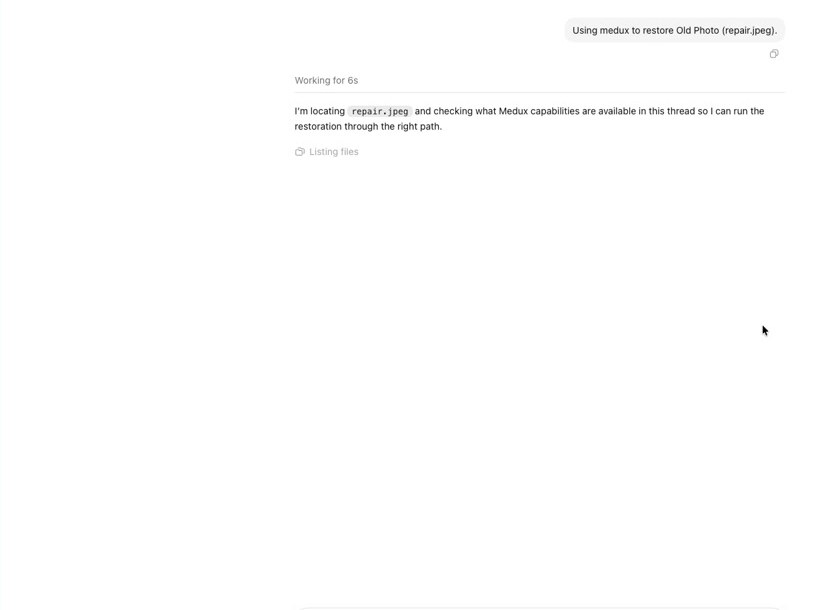
Using medux to restore Old Photo (repair.jpeg).Workflow steps
Ask Codex to restore the old photo
Start with a direct instruction. Codex reads the request, locates repair.jpeg, and checks which Medux capabilities are available in the MCP session.
Create an upload URL and send the source image
Codex uses the Medux upload primitive to create a signed upload URL, then pushes the local JPEG to Medux. This keeps the media transfer inside the agent workflow instead of requiring a separate dashboard.
# Behind the scenes, Codex handles a flow like this:
medux.create_upload_url --filename repair.jpeg --content-type image/jpeg
curl -X PUT "$MEDUX_UPLOAD_URL"   -H "Content-Type: image/jpeg"   --data-binary "@repair.jpeg"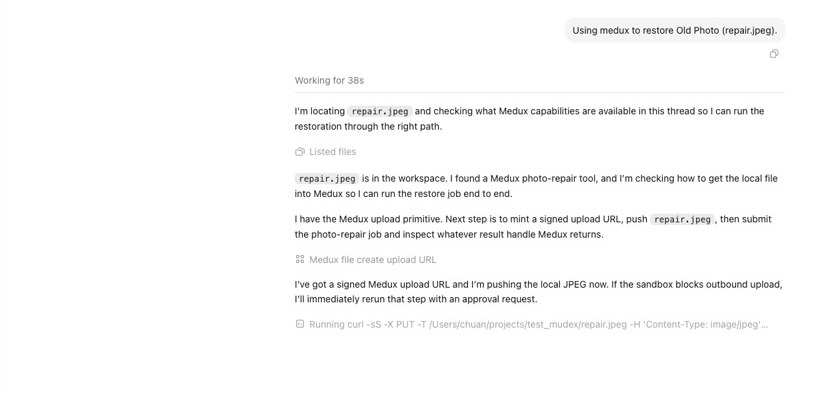
Submit the Medux photo-repair job
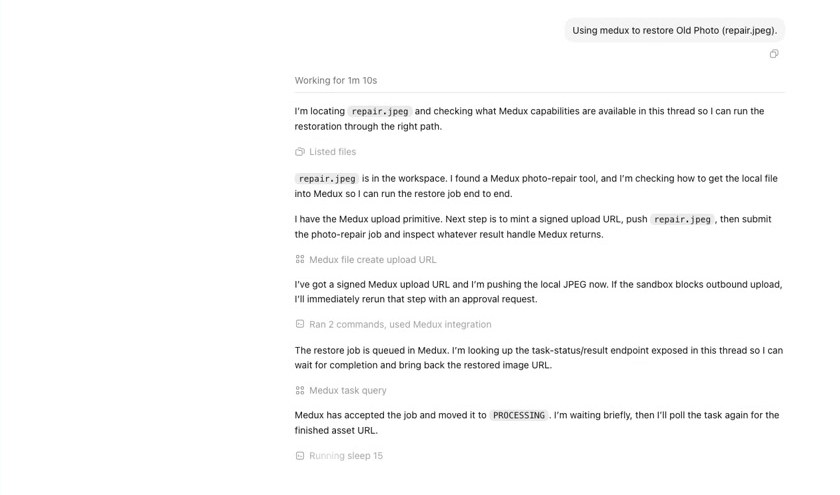
After the file is uploaded, Codex submits the repair request to the Medux photo-repair tool. The job is then queued and moved into processing.
# Conceptual MCP flow:
medux.photo_repair --input "$MEDUX_FILE_URL"
medux.task_query --task-id "$TASK_ID"Poll the task until the restored image is ready
Codex keeps checking the task status, so the workflow stays hands-free. When Medux moves the job to PROCESSING, Codex waits briefly and asks for the result again.
Download the restored PNG to the workspace
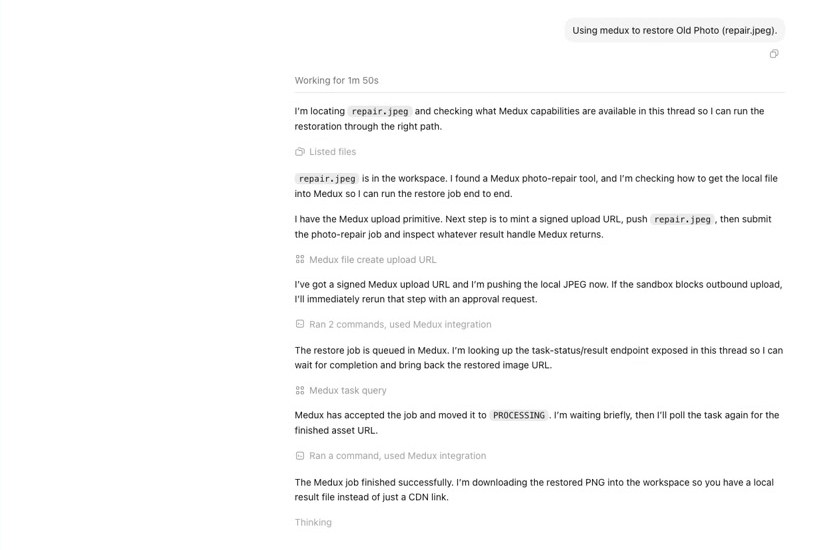
When the Medux job finishes, Codex downloads the generated result instead of leaving it as a remote CDN link only. In the video, the final file is saved as repair_restored.png.
Result preview
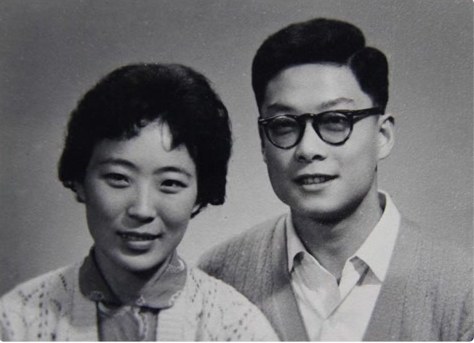
The sample run repairs the portrait and produces a cleaner, colorized, higher-resolution PNG while preserving the original composition.

Why this workflow is useful
Medux provides the media-processing layer, while Codex handles the operational details: finding files, choosing the right MCP tool, uploading assets, tracking task status, and saving the final output. That makes old-photo restoration easy to repeat and easy to plug into a larger content pipeline.
Example result
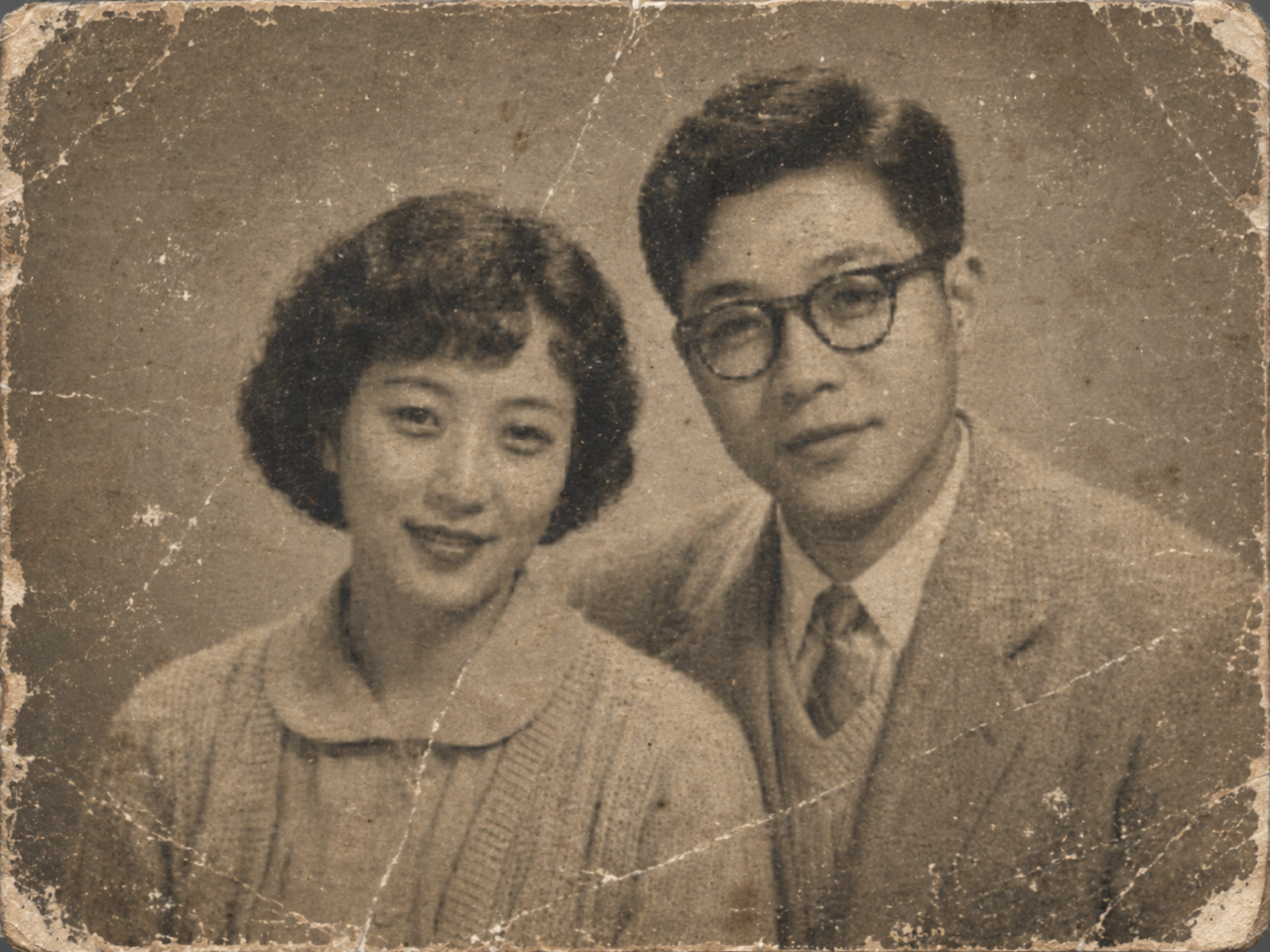
src / rst demonstration
Below is the complete restoration example: src is the original old photo, and rst is the restored result generated by Medux.

Explore related workflows
Continue with a nearby Medux workflow or compare how the same task works across Claude MCP and Codex MCP.
Claude-specific workflow
Run Restore Old Photos with AI as a Claude MCP workflow
Keep the goal, source assets, and constraints together in the conversation. Ask Claude to restate the source photograph and any restoration constraints before proposing the Medux photo restoration tool. That context checkpoint makes the file roles and desired outcome easy to correct before any Medux call is approved.
Claude prompt pattern
Using the assets and requirements in this conversation, help me restore old photos with Medux MCP.
Restate which input fulfills each role: the source photograph and any restoration constraints.
Propose the the Medux photo restoration tool call and summarize its arguments before asking for approval.
When it finishes, return the restored image with a checklist confirming that damage is reduced while the original subject, composition, and important details remain recognizable.
Context checkpoint
Have Claude summarize the intended transformation, identify every source asset by role, and list the important constraints. Review that summary together with the proposed tool arguments; correct the conversation first if a file, order, time range, or setting is ambiguous.
Result verification
Keep the Medux task ID in the conversation while Claude checks progress. When processing ends, ask for the restored image plus a concise validation checklist confirming that damage is reduced while the original subject, composition, and important details remain recognizable.
Workflow overview
Claude acts as the operator while Medux handles the media processing. You provide the photo and a clear request. Claude selects the available Medux tools, creates an upload target, sends the image, starts the restoration task, checks progress, and retrieves the final file.
Step-by-step
Prepare the source image
Place the old photo in the working folder that Claude can access. A clear scan or photo produces the best input for restoration.
Send one clear instruction
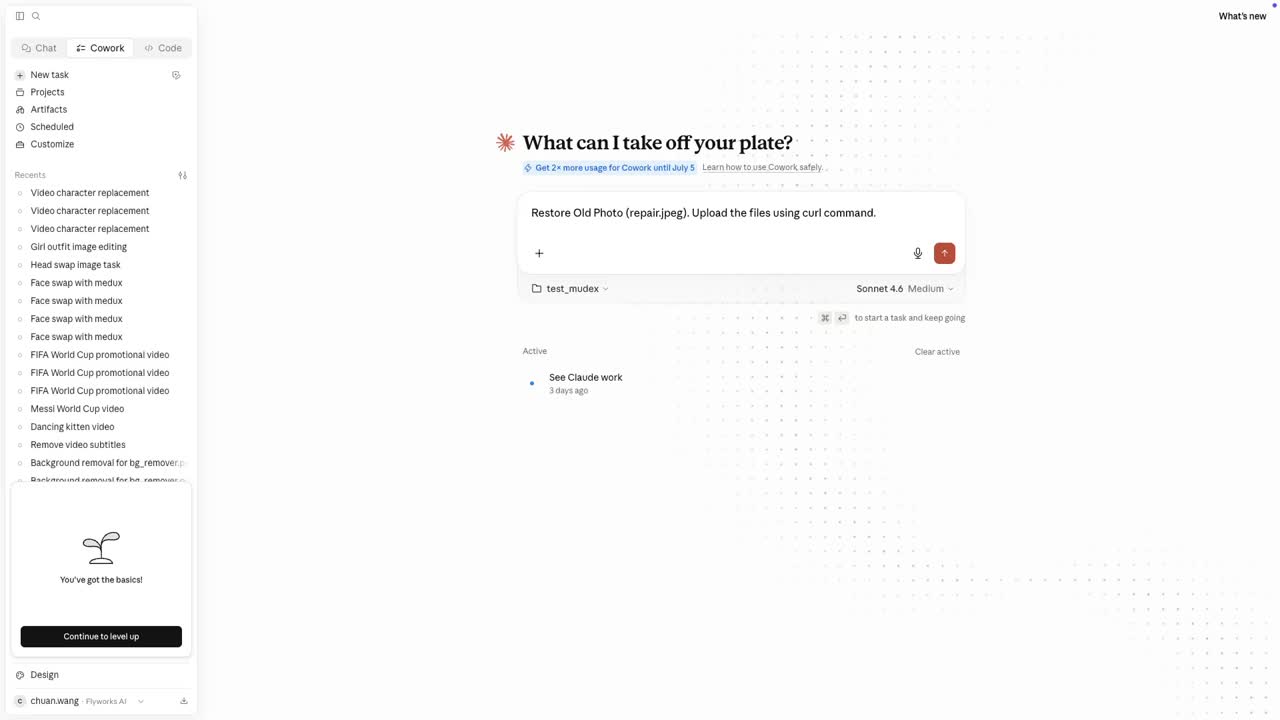
Ask Claude to restore the image with Medux and explicitly allow a command-line upload. The concise prompt used in the video follows this pattern:
Restore Old Photo [your-photo.jpg].
Upload the file using a curl command.
The code block wraps automatically on narrow screens and never forces horizontal page scrolling.
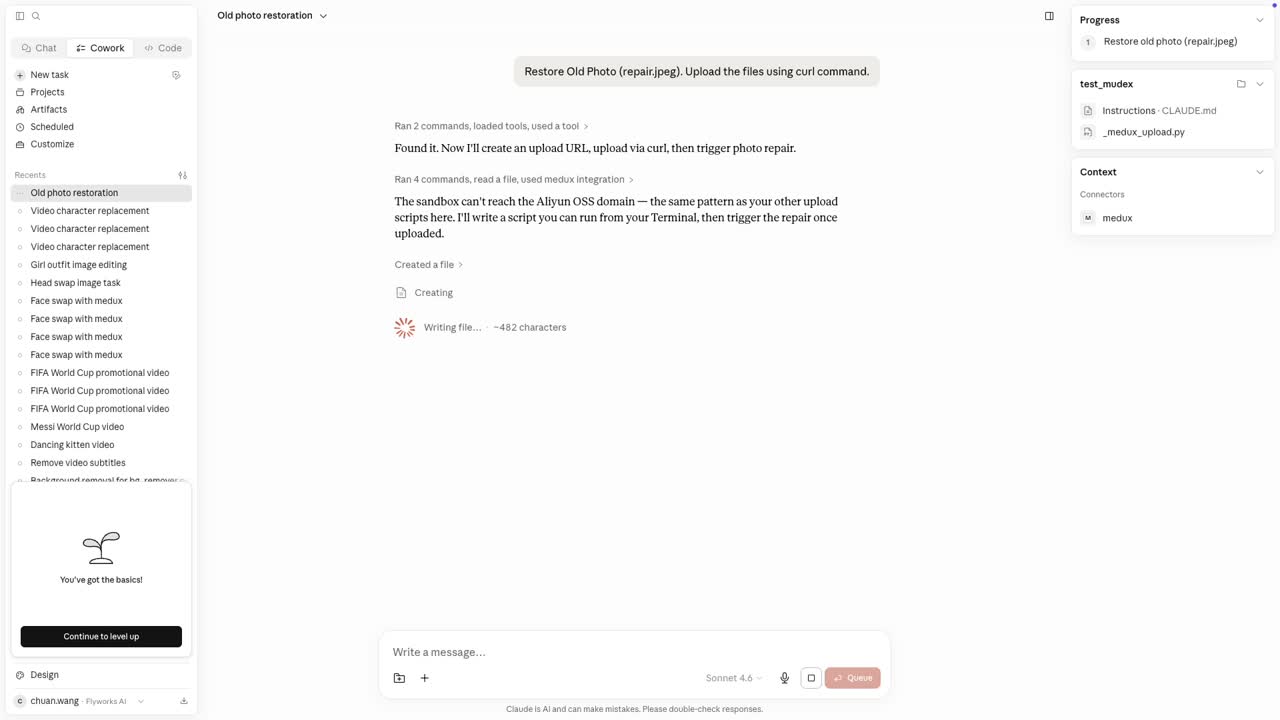
Create an upload target and send the photo
Claude calls the Medux MCP file tool to create a temporary upload URL, then uploads the local image with curl. A typical wrapped command looks like this:
curl --request PUT --header "Content-Type: image/jpeg" --upload-file "./your-photo.jpg" "SIGNED_UPLOAD_URL_RETURNED_BY_MEDUX"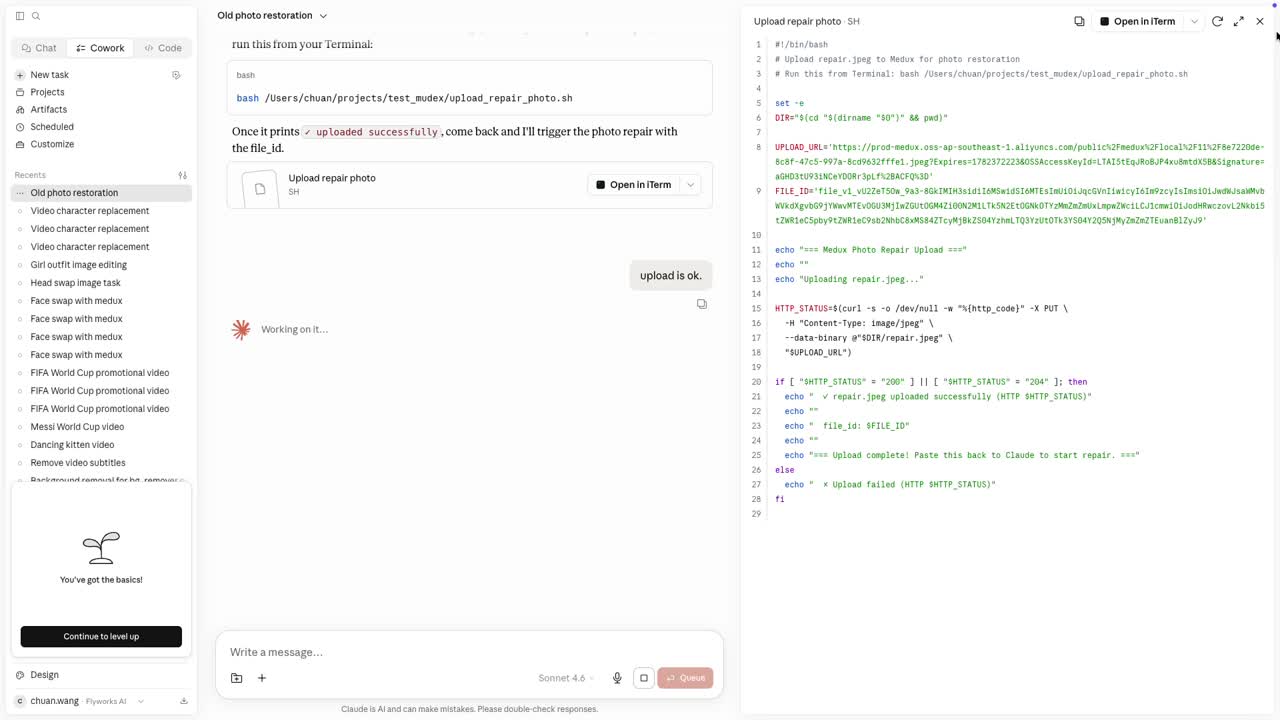
Run the old-photo restoration task
After the upload succeeds, Claude calls the matching Medux image-restoration tool and passes the uploaded asset as the input. Approve the tool call when Claude asks for permission.
- Keep the request focused on restoration rather than redesign.
- Preserve the people, pose, composition, and original identity.
- Let Medux repair fading, scratches, blur, and missing detail.
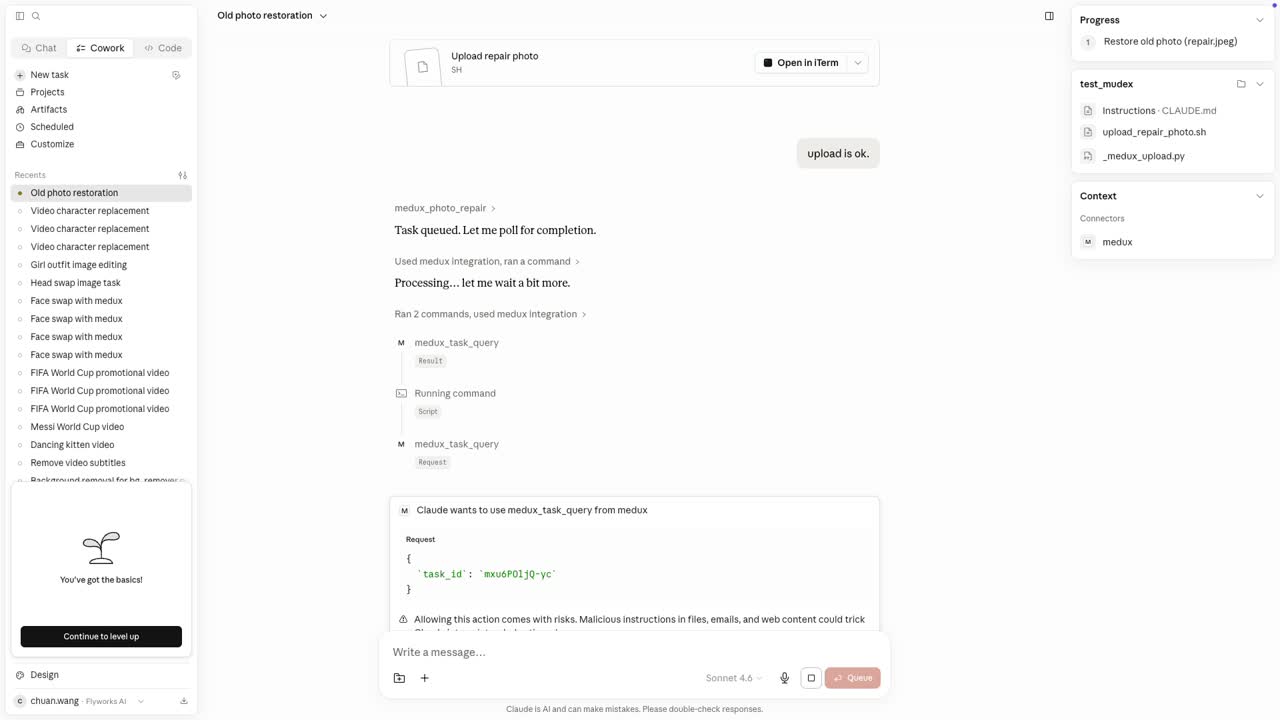
Wait for completion and retrieve the output
Claude checks the Medux task status until the job is complete. When the output URL is returned, download the restored image to the local workspace:
curl --location "RESULT_URL_RETURNED_BY_MEDUX" --output "restored-photo.jpg"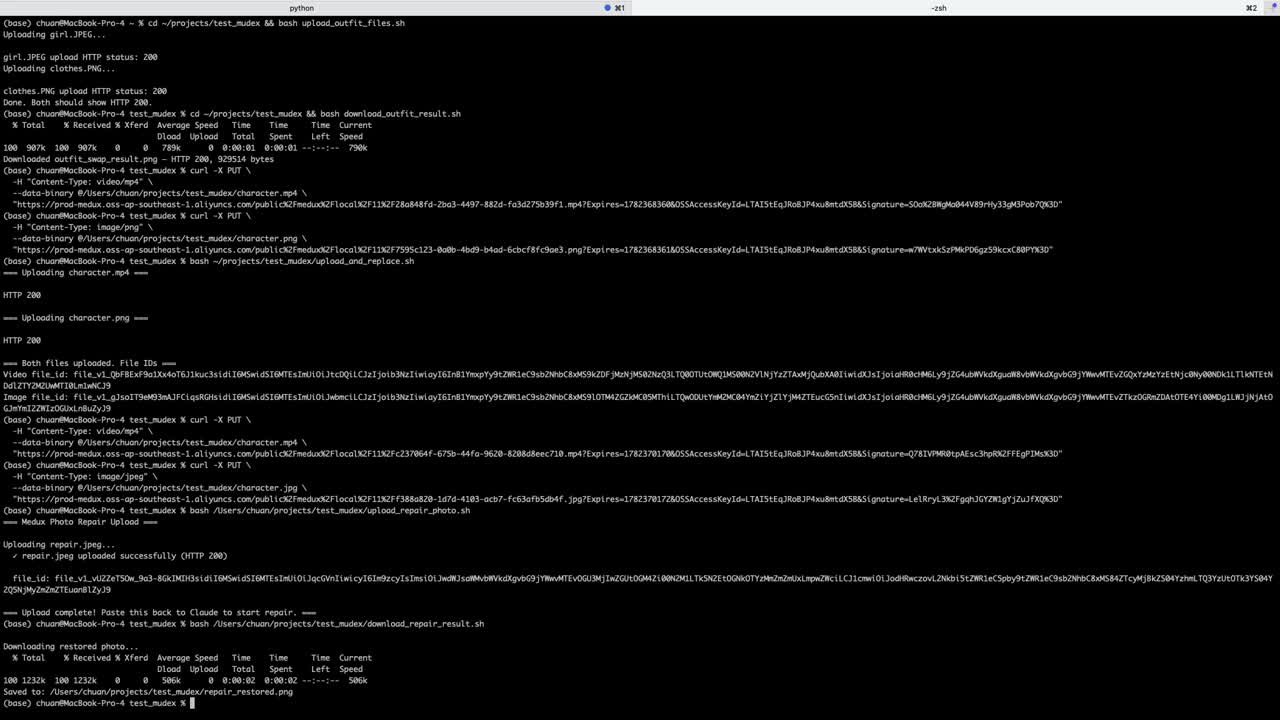
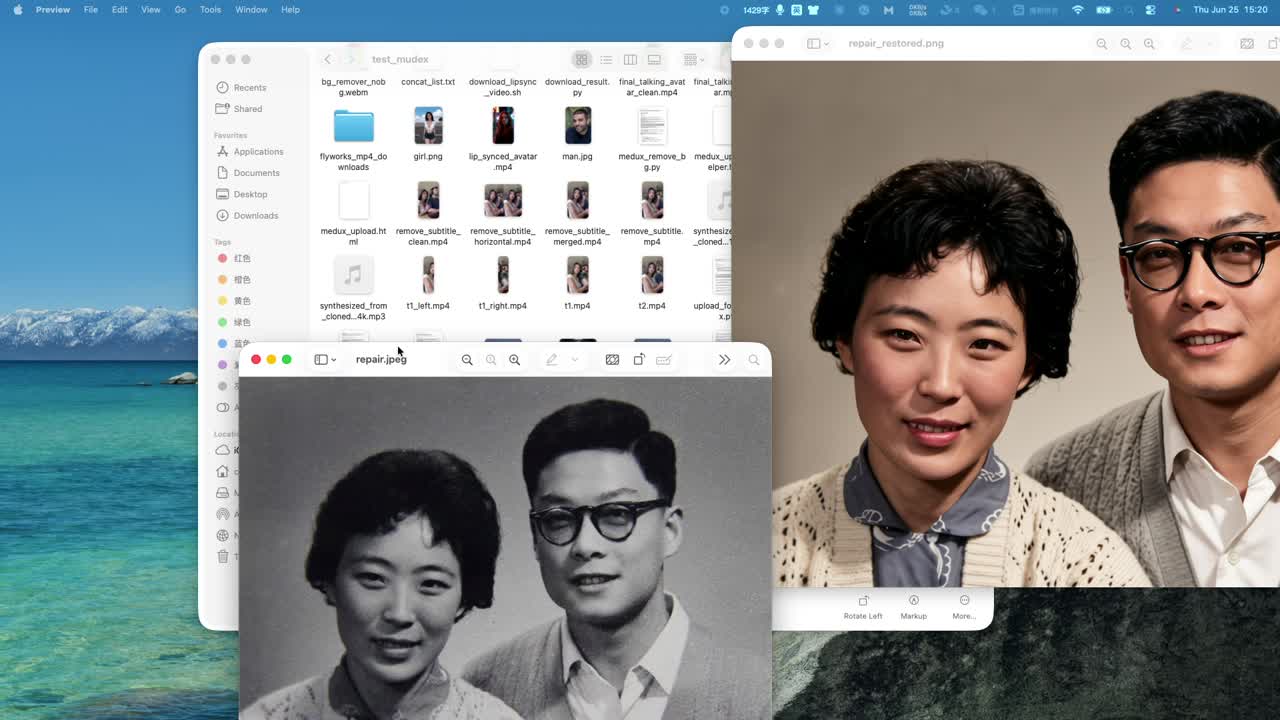
Review the restored photo
Open the original and restored files side by side. Check facial identity, clothing, background structure, and fine details. In the tutorial result, Medux recovers clearer faces, stronger contrast, cleaner texture, and natural color while preserving the original composition.
Why this workflow is useful
There is no need to open a separate media dashboard or write a custom integration. Claude manages the sequence through MCP, while Medux provides the upload, task, and media-processing infrastructure behind the scenes.
Explore related workflows
Continue with a nearby Medux workflow or compare how the same task works across Claude MCP and Codex MCP.