Free online AI text to image

Krea 2 Turbo: Free AI Image Generator for Unlimited Ideas

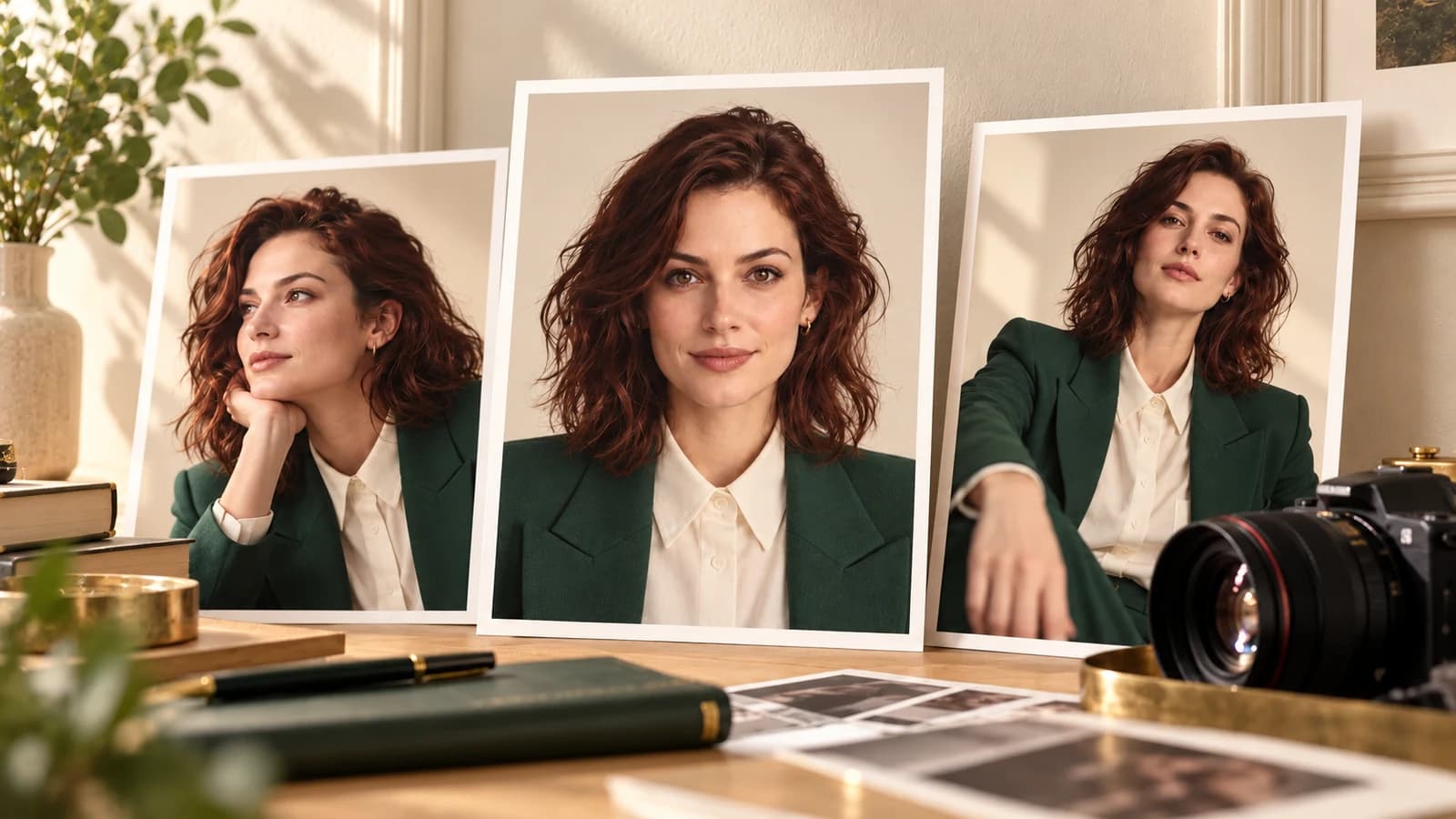
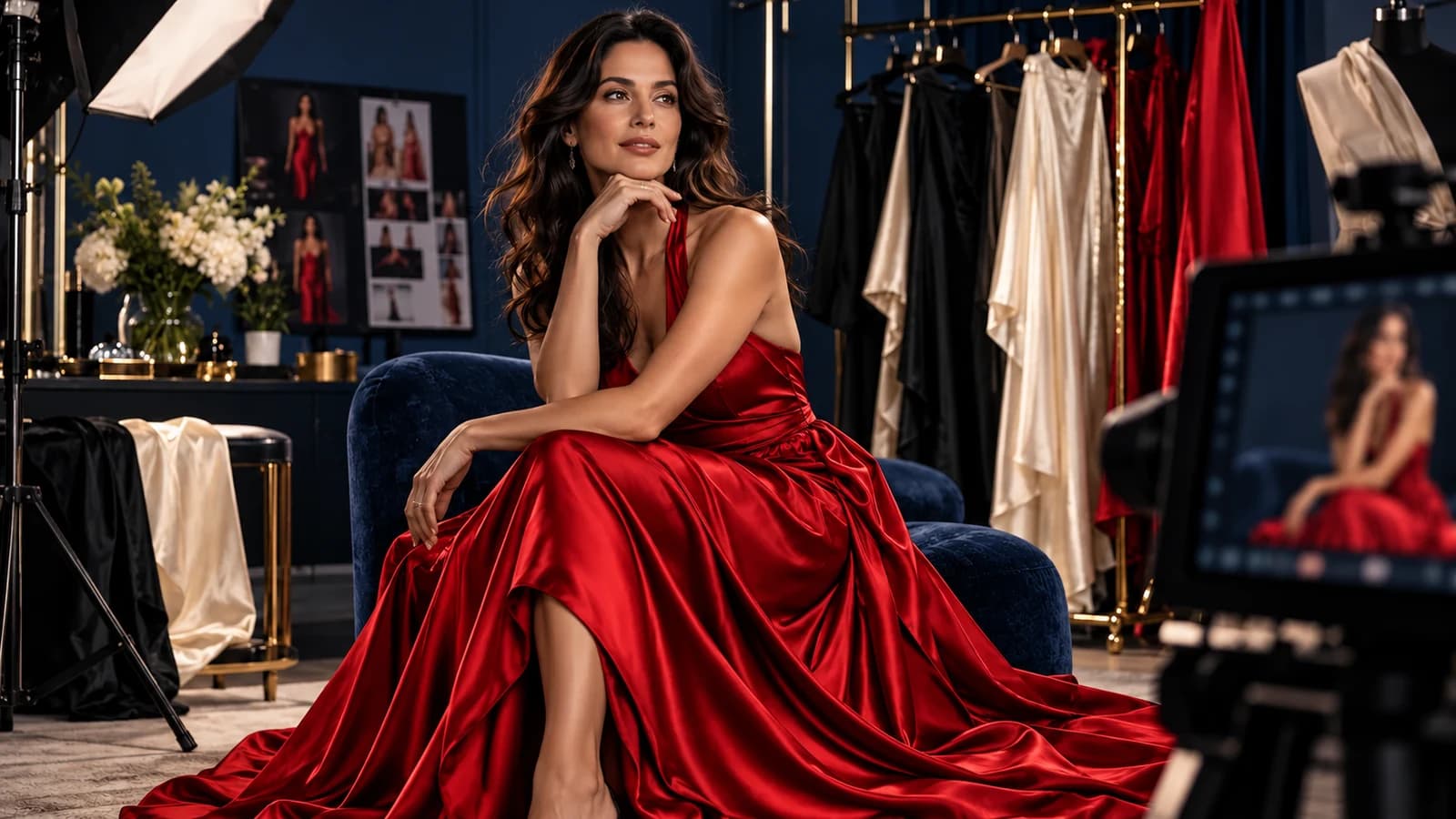
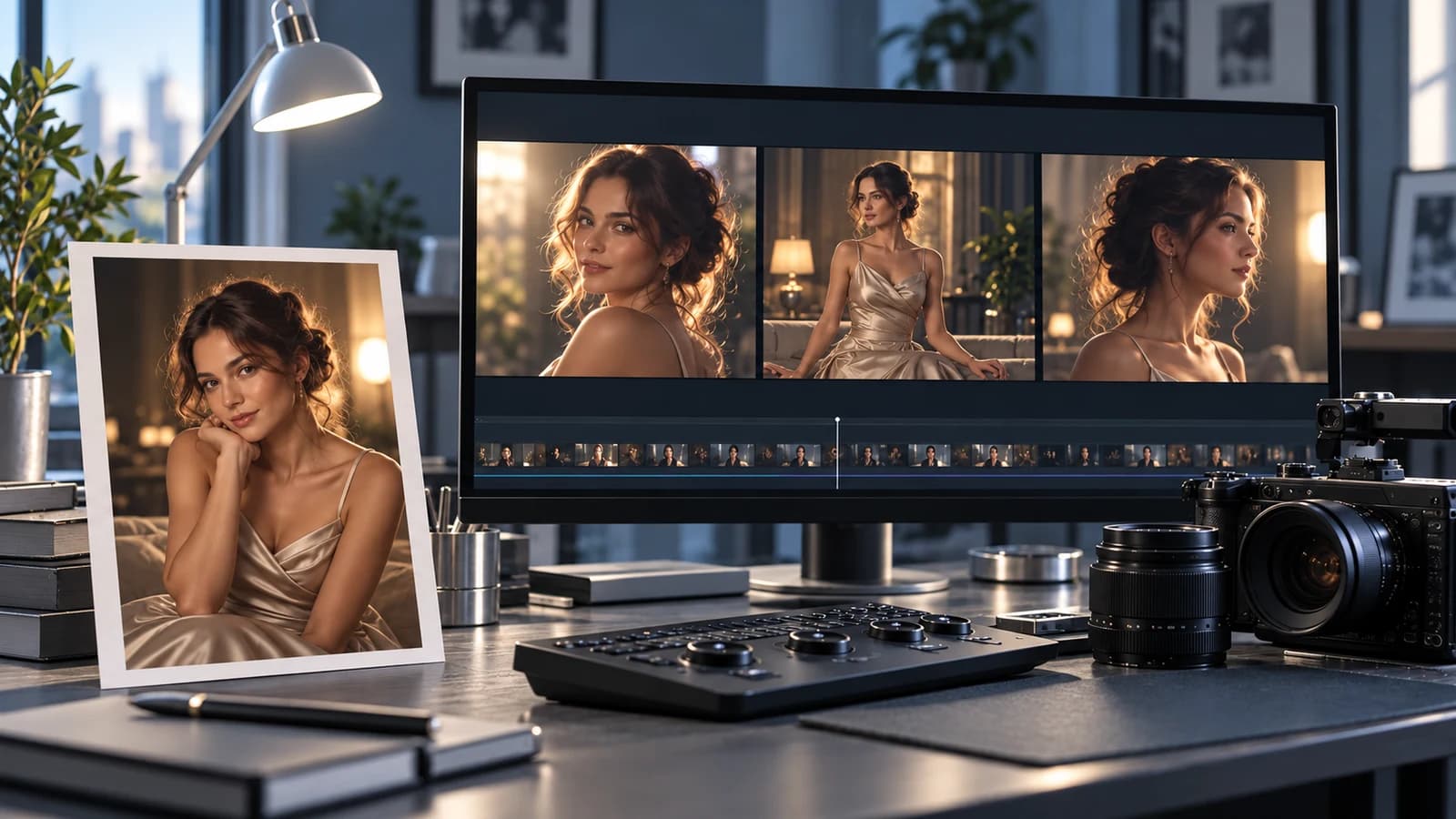
Create AI images online with Krea 2 Turbo on Medux. Explore unlimited ideas for cinematic portraits, fashion concepts, and illustrations. Add a negative prompt, choose your format, then preview and download your image.

Start with 3,000 free trial credits for eligible tasks. Compare free credits and usage limits.

Try it now

Create your image with Krea 2 Turbo

Open in Playground
01

Prompt

Describe the subject, style, lighting, and setting. All depicted characters must be adults.

The latest task appears below. Processing continues on the server if you leave this page.

Content involving minors, non-consensual intimate imagery, or realistic depictions of real people without their consent is not permitted.

Result preview

Your result will appear here

No image yet. Generate one to see it here.

Build with Medux

From your browser to the API and MCP

Use the service behind this Workshop in your application or AI agent. Explore the API reference and its corresponding MCP tool before starting an integration.

Krea 2 Turbo and the Text to Image Turbo API

Bring the image-generation service behind this Workshop into your application. The API reference covers authentication, model selection, prompt and negative prompt fields, image dimensions, and asynchronous task results. Use Playground to compare inputs before integrating Krea 2 Turbo.

Read the Text to Image Turbo API reference

Generate images from your AI agent with MCP

The API reference's MCP Tool section documents the corresponding medux_text_to_image tool. Review its published arguments and authorization requirements, then connect your agent using the Medux MCP setup guide. Keep model selection explicit when using Krea 2 Turbo.

Open the Text to Image MCP tool
One connected workflow

How it works

01

Describe your image

Write one clear subject, pose, setting, and visual style. For adult projects, make every character's adult age explicit and use only authorized likenesses. Select Use sample to start from the example.

02

Choose your format and exclusions

Select square, portrait, or landscape output. Add an optional negative prompt for unwanted details such as blur, distorted hands, text, or watermarks.

03

Generate and download

Select Generate image to start a Krea 2 Turbo task. Follow its status, preview the completed image, and download it. Account Results keeps the task available when you leave the page.

Creative control

An adult AI character generator for portraits and virtual models

Virtual models and adult character art

Create original fictional adult characters, virtual models, glamour portraits, or consensual adult art. Specify age, wardrobe, expression, and pose. Keep an approved portrait as the reference for your next media task.

Source images for video

Design a portrait or a scene as a starting image for your next video. Download the still for Text & Image to Video in Playground, or combine a portrait with speech in Lip Sync.

Style and mood exploration

Compare cinematic photography, painterly illustration, studio portraits, or dramatic environments. Change the palette, lighting, or composition one detail at a time before choosing your final direction.

Try the bikini, lingerie fashion, and glamour portrait prompt recipes or design a fictional adult companion character. For a reusable visual identity, follow the consistent character guide. Download your finished still and animate it in the Image to Video Workshop, or start a video scene with Minimax H3, turn a portrait into a talking video with Lip Sync, or refine the still with Image Edit and Remove. For an integration, read the Text to Image Turbo API and its MCP tool, then follow the Medux MCP connection guide.

Better results

Write stronger Krea 2 Turbo image prompts

Be specific

Start with one subject and a clear pose. Add adult age, clothing, framing, and environment. For portraits intended for lip sync, ask for one unobstructed face and a composition suited to a talking presenter.

Describe lighting and style

Choose a coherent visual direction such as a realistic studio portrait, golden-hour fashion photograph, or painted fantasy scene. Describe the light source and background without mixing conflicting instructions.

Use a negative prompt

List specific unwanted details such as blurred faces, extra fingers, text, or watermarks. Negative prompts guide generation but do not guarantee a perfect output; review each result before using it in another workflow.

Build with Medux

Run this tool from your agent or code

Every Medux tool has open examples on GitHub: copy a prompt for Claude or Codex, or start from a working API request.

REST API

API example

Request fields, curl, Python and JavaScript samples, and response handling for this endpoint.

View on GitHub
Make an original still

Krea 2 Turbo free trial for online text-to-image ideas

Krea 2 Turbo turns a text prompt into one still image. This page keeps its model fixed, so prompts, optional negative prompts, and output size are the choices to compare here.

Online AI images and adult portraits

Describe an original adult subject, wardrobe, pose, lighting, and framing. Consensual adult art is within this Workshop's supported scope; real-person likenesses need explicit permission. Review every output before reuse.

Free credits, unlimited visual ideas

New users can start with 3,000 trial credits for eligible tasks. Explore unlimited visual ideas, choose square, portrait, or landscape output, and preview your finished image.

Turn a portrait into a larger workflow

Download the still before uploading it as a Minimax H3 first frame or as an authorized reference face in Video Face Swap. Those tools create separate tasks with their own costs and content rules.

What makes the best image AI for a portrait brief?

For image AI, compare your own prompt across Krea 2 Turbo and MOSS Image SFT. Review face detail, lighting, composition, the chosen output size, and credit usage before choosing a result. The best image generation choice for an authorized adult portrait may differ from the best choice for an illustration or a video first frame; no single model is guaranteed to win every prompt.

Continue your project: Compare MOSS Image SFT · Animate an image with Minimax H3 · Use an approved face in Video Face Swap · Use the Text to Image MCP tool. Explore all Workshop tools, connect an agent with the Medux MCP setup guide, or return to the Medux home page.

Frequently asked questions

Krea 2 Turbo free online image FAQ

Can I try Krea 2 Turbo for free, and is generation unlimited?

New Medux users receive 3,000 free trial credits for eligible Krea 2 Turbo images. Explore unlimited visual ideas online, compare formats, and review your estimate before submitting.

What is Krea 2 Turbo on Medux?

It is a browser-based text-to-image Workshop using Krea 2 Turbo through the Medux Text to Image Turbo service. Enter a prompt, optionally add a negative prompt, choose an image size, then generate, preview, and download the result.

Can I create portraits of adults with Krea 2 Turbo?

Medux supports lawful creative image projects featuring consenting adults. Everyone depicted must be 18 or older, and real-person likenesses require explicit permission. You can also create general portraits, illustrations, fashion concepts, and storyboards.

How does online AI image generation work here?

Open the Workshop in your browser, enter a prompt, choose an image size, and preview the finished image. You can try eligible tasks with free trial credits and explore unlimited visual ideas. Service rules, consent, and likeness rights apply to submissions.

What can I create with Krea 2 Turbo online?

Explore unlimited ideas for original portraits, fashion concepts, illustrations, and storyboards. Describe your scene clearly, use authorized likenesses, and review the generated result.

Can I create a virtual model or an AI girlfriend image?

You can describe an original fictional adult character for a portrait, fashion concept, or visual story. Make the character's adult age explicit and keep the approved reference for later media tasks. This tool creates images; it does not provide companion chat or conversational memory.

Which model does this Workshop use?

This Workshop submits images with the Krea 2 Turbo model. The Text to Image Turbo Playground also offers other models, so select Krea 2 Turbo there when comparing it with this page.

Which image sizes can I choose?

Choose square at 1024 × 1024, portrait at 768 × 1344, or landscape at 1344 × 768. Square is the default. Pick a composition that suits your intended image or downstream video workflow.

How do prompts and negative prompts work?

The main prompt describes what to create and accepts up to 2,000 characters. The optional negative prompt accepts up to 1,000 characters and describes unwanted details such as blur, text, or distorted hands. Specify the subject, adult age, setting, lighting, and style clearly.

Can I use Krea 2 Turbo through the API or MCP?

Yes. The Text to Image Turbo API reference documents the service behind this Workshop. Its MCP Tool section documents the corresponding medux_text_to_image tool. Read the published arguments and authentication requirements, select Krea 2 Turbo where supported, and retrieve the asynchronous task result.

Can I leave the page while an image is generating?

Once a task ID is returned, processing continues on the server. Return in the same browser and account to recover your latest submission, or open Account Results to find your running task and completed image.

How do I preview and download my image?

When the task succeeds, the result panel displays the generated image and a download link. Your task and output are also available in Account Results. Generation time depends on service load; credits and plan limits apply.

How does this connect to Minimax H3 and face swap?

Krea 2 Turbo creates still images; Minimax H3 creates videos from text. To use a still as a video reference, download it and open Text & Image to Video in Playground. Video Face Swap accepts a reference portrait and source clip, while Lip Sync can pair a portrait with speech. Each workflow has its own inputs and tasks.


Your next creation starts here

Create with Krea 2 Turbo.

Try it now