Choose a starting point
Start from text or animate one reference image. Use an image you own or are authorized to use, and keep every depicted person an adult for adult projects.


Create NSFW AI video concepts with Minimax H3 from text or one authorized reference frame. Explore uncensored creative direction for lawful projects featuring consenting adults. Output remains subject to model behavior and Medux content rules; follow progress and download completed clips.
Try Minimax H3 for free with 3,000 monthly trial credits on Medux Free. Videos up to 10 seconds are available on Free; tasks use credits. See plan limits.
Your completed video will appear here. Start with your own idea or load an example prompt.
Bring the service behind this Workshop into your app or agent workflow. The Text & Image to Video API reference covers authentication, request parameters, and task results so you can move from a browser experiment to an integration. Its MCP Tool section documents the corresponding tool for your AI agent.
Keep your creative decisions in one place. Write a scene, add a reference frame for visual control, and review the result before your next iteration.
Start from text or animate one reference image. Use an image you own or are authorized to use, and keep every depicted person an adult for adult projects.
Describe your subject and the motion you want, then choose portrait, landscape, or square output and adjust the duration if needed.
Submit the prompt and any selected images, follow the task status, then preview and download the finished video.
Animate an authorized reference frame for an eligible adult concept. Keep the prompt, output settings, and finished video in the same Workshop workflow.
Upload an authorized portrait, product image, or illustration as a reference frame. Describe the motion, atmosphere, and camera behavior you want to add.
Describe an original adult character, atmosphere, and action without hiding the creative intent of your brief. Uncensored here refers to exploring lawful adult ideas, not a guarantee of unrestricted generation: model behavior and Medux content rules still apply. Review the result before your next iteration.
Develop fictional characters aged 18 or older with a defined look, expression, and movement. Specify clothing, posture, and lighting to give your creative brief a consistent visual direction.
Explore romantic adult scenes, cinematic night settings, and character moments. Describe the interaction, pacing, and camera move together so each shot follows one clear idea.
Turn a wardrobe concept or editorial mood into a moving scene. Direct fabric movement, a subtle pose change, or a slow tracking shot, then refine the prompt after reviewing your result.
A specific visual brief is easier to iterate on than a list of unrelated ideas. For an eligible NSFW concept, make every character's adult age and the intended action clear. Use these starting points to make your next prompt more deliberate.
Describe what the viewer should watch and what changes during the shot. Start with a single action before adding more moving parts.
Specify a close-up, wide shot, or tracking shot. Add one camera movement and describe the lighting or atmosphere that supports it.
Review the result and change one detail at a time. Keep successful prompts as a starting point for product clips, social stories, and visual concepts.
Every Medux tool has open examples on GitHub: copy a prompt for Claude or Codex, or start from a working API request.
A ready-to-paste prompt and approval checklist for running medux_text_image_to_video from Claude.
View on GitHubThe same workflow for Codex: expected tool call, arguments to review and how to verify the result.
View on GitHubRequest fields, curl, Python and JavaScript samples, and response handling for this endpoint.
View on GitHub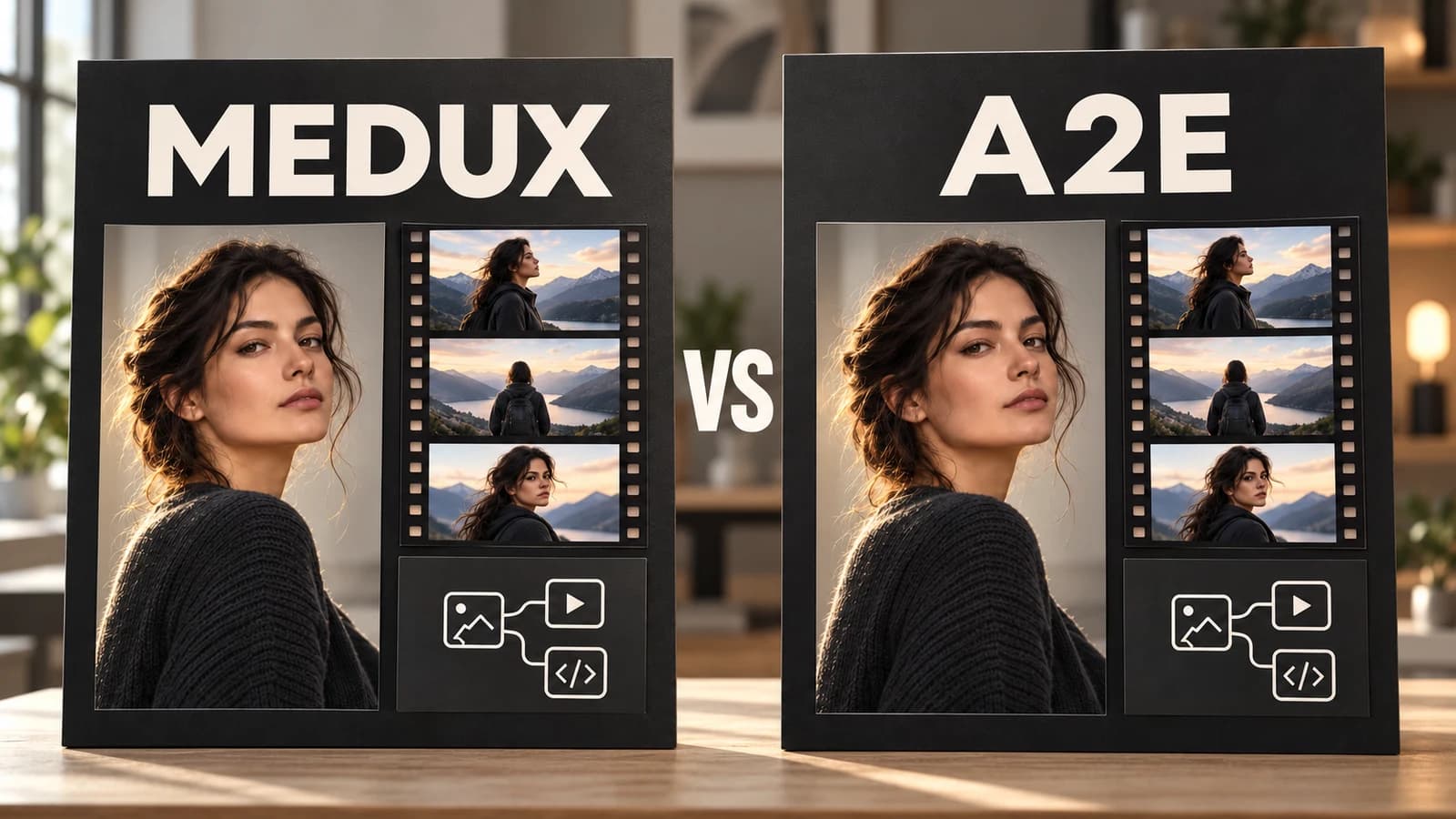
Compare Medux and A2E by workflow: image and video creation, adult-content scope, face swap, API access, and MCP. Check the sources before choosing.
Read tutorial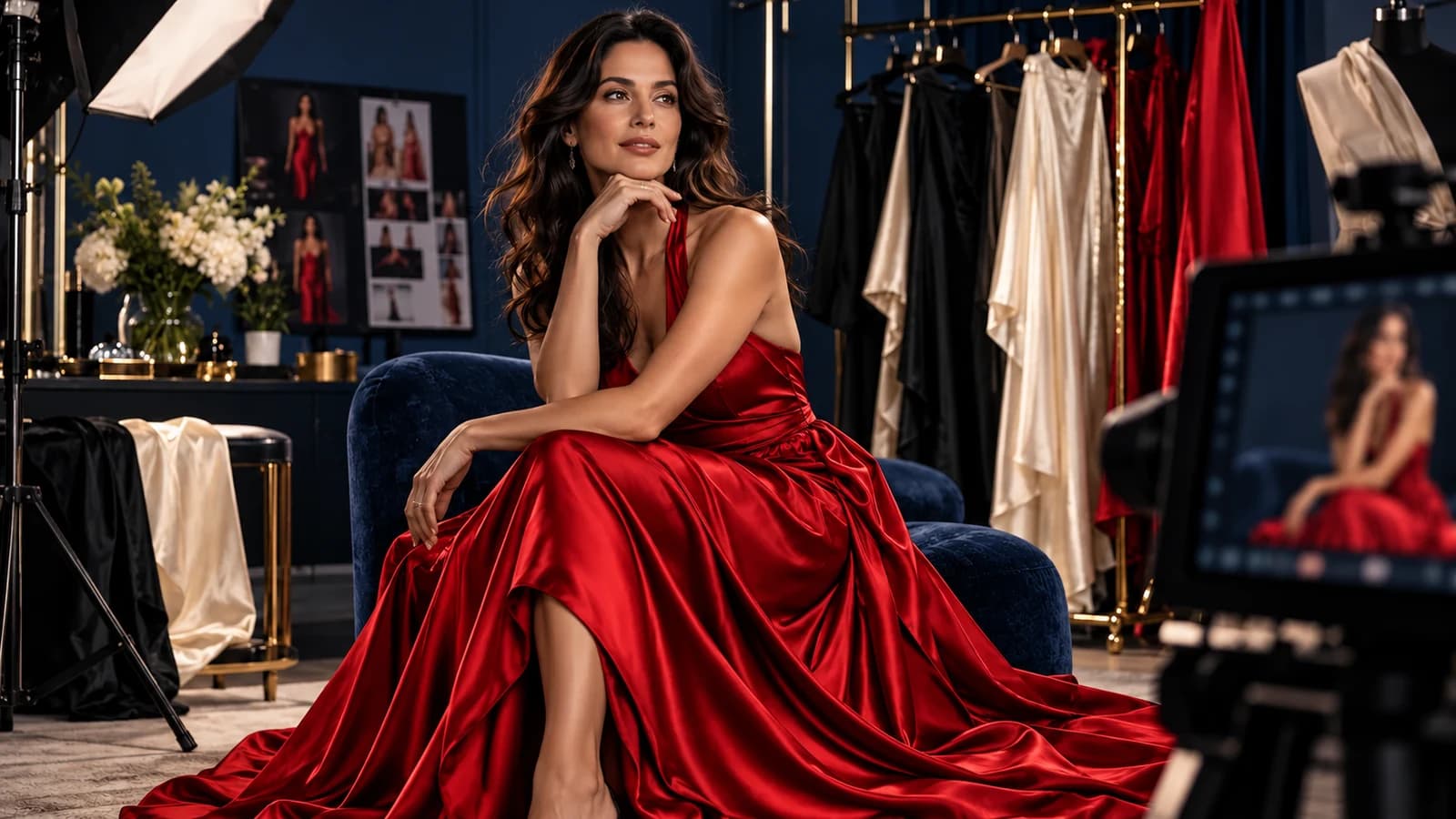
Copy adult swimwear, lingerie fashion, glamour portrait, and virtual model prompts. Refine lighting, framing, and negative prompts with Krea 2 Turbo.
Read tutorial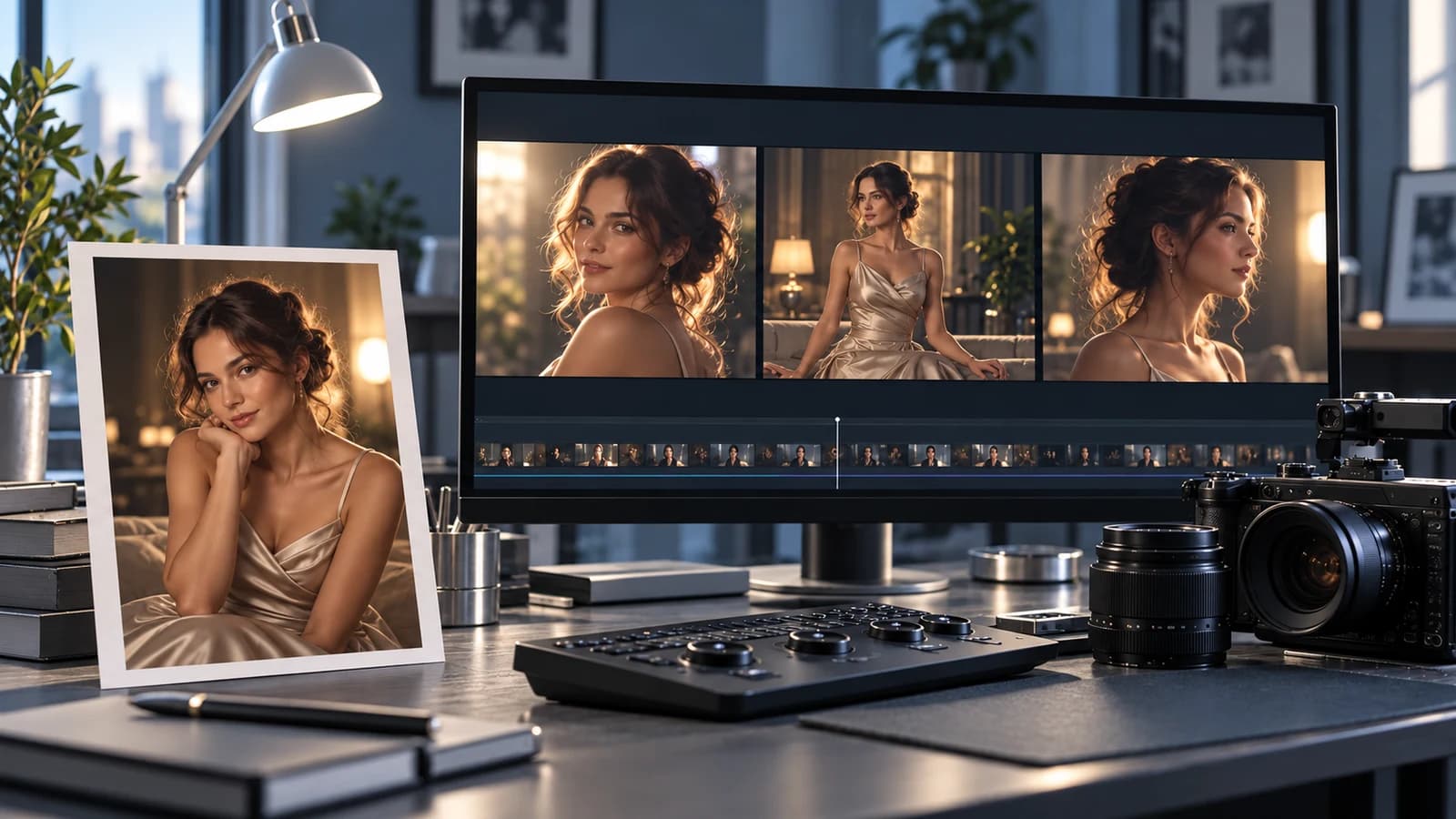
Prepare an authorized adult image for image-to-video generation. Use Medux reference inputs, compare motion with lip sync, and find the API and MCP docs.
Read tutorialChoose Text to Video or Image to Video for an eligible adult concept. Explore uncensored creative ideas while following consent, model, and service rules, then set a duration that fits your plan and credits.
Start with a written scene and an original adult character when you do not have an image. Specify the action, setting, and camera move. A short first test helps you judge motion before spending credits on a longer result.
Animate one authorized reference image while keeping the subject and scene consistent. For NSFW or other adult projects, use only media you have rights to and likenesses whose adult subjects have consented.
Medux Free offers 3,000 monthly trial credits for eligible tasks and videos up to 10 seconds. A paid plan can submit up to 25 seconds. Each video uses credits, and no prompt or output is guaranteed.
Test the same approved adult concept as a text prompt and with one authorized reference image. Compare motion, subject consistency, duration, format, credit estimate, and the finished result. Minimax H3 generates a new scene; Video Face Swap changes a face in an existing clip. Both remain subject to their own content rules.
Explore unlimited video ideas with Minimax H3 online. New users can start with 3,000 free trial credits for eligible tasks. Free accounts can submit videos up to 10 seconds; paid plans support up to 25 seconds.
Yes. Medux Free currently includes 3,000 trial credits per month for eligible tasks. You can submit Minimax H3 videos up to 10 seconds on Free; longer videos up to 25 seconds require a paid plan. Each task uses credits, and plan limits and content rules still apply. Check Pricing for the current details.
Medux supports lawful creative video projects featuring consenting adults, whether you start from text or authorized images. Everyone depicted must be 18 or older, and you need explicit permission to use a real person's likeness. Describe your scene, choose a format, and follow your task through to the finished video.
Eligible lawful adult projects can start from text or an authorized reference frame. Everyone depicted must be 18 or older, and a real person's likeness requires explicit consent. Requests and results remain subject to model behavior and Medux content rules; no particular output is guaranteed.
You can explore eligible NSFW and other adult creative briefs, but uncensored does not mean unrestricted. Minimax H3 does not bypass legal, consent, likeness, service, or model rules, and some prompts or results may be limited or rejected.
Create a video in your browser from a text prompt or one image. Choose a format, review the estimate, and follow the task to its result. Explore unlimited scene ideas while following consent, likeness, and content rules.
Explore unlimited original scene ideas, from portraits and fashion films to illustrations brought to life. Use authorized inputs and follow the service's age, consent, and likeness rules.
Yes. Describe an original adult character, setting, and one clear action. To preserve the character's appearance, upload an authorized portrait in Image to Video mode.
Choose Text to Video or Image to Video. Write a scene prompt of at least 25 characters, upload one reference image for Image to Video, choose an output format, and select Generate video. You can load a mode-specific example prompt before submitting.
No image is needed for Text to Video. Image to Video requires one reference frame. Additional reference inputs remain available through Playground and the API; this Workshop does not upload audio.
Choose portrait, landscape, or square at the documented 480p output preset. Advanced settings let you set a duration from 1 to 25 whole seconds and seed. Free accounts can submit up to 10 seconds; a paid plan is required for longer videos, up to 25 seconds. Videos use the default 25 frames per second. The initial values are 5 seconds and a random seed of -1.
Yes. Once a task ID has been returned, processing continues on the server. Return to this page to recover your latest submission, or open Account Results to see your running tasks and completed videos.
This Workshop runs one Minimax H3 video at a time. Generate becomes available again when the current task completes, fails, or expires. You can follow its progress here or in Account Results while it processes.
Yes. The Medux Text & Image to Video API reference documents the service behind this Workshop, including request fields, optional reference inputs, and task results. Use Playground to explore inputs, then integrate the API into your application or agent workflow.
Yes. Download your completed clip and upload it to Video Face Swap with an authorized reference portrait. Workshop Voice can create narration, Workshop Avatar creates talking presenters, and Workshop Remove offers video cleanup tools. Each tool has its own inputs and task history.
Start with one clear subject and action. Add the setting, lighting, shot size, and one camera movement. Keep the instructions consistent, then change one detail at a time when comparing results.